|
My Printers |
► |
Or browse by model:




|
HP LaserJet 1300 Maintenance Kit Instructions
HP LaserJet 1300 Maintenance Kit Instructions
Originally written for: HP LaserJet 1300
Also applies to: HP LaserJet 1150, 1300n, 1300t, 1300xi
These instructions will help explain maintenance kit installation steps for an HP Laserjet 1300 and similar models.
Contents
- Introduction
- Replacing the print cartridge
- Replacing the pickup roller
- Cleaning the pickup roller
- Replacing the printer separation pad
- Ordering supplies and accessories
Introduction
This document explains how to install and maintain the consumables for the HP LaserJet 1150 and 1300 series printers, which consist of the print cartridge, the pickup roller, and the printer separation pad.
To order your replacement maintenance kit for this printer, refer to the following part number: (PR# V7570) (HP LaserJet 1300 Maintenance Kit [HP LJ-1300-KIT])
This kit includes:
Replacing the print cartridge
Access to the print cartridge is through the print cartridge door, which is located on the front of the printer. The print cartridge door must be opened to access the print cartridge, clear jams, and clean the printer.
- To open the print cartridge door, firmly grasp the left and right sides and pull the print cartridge door away from the printer.
Note: There will be some resistance when opening the print cartridge door. Opening the print cartridge door conveniently lifts the print cartridge for easy removal.
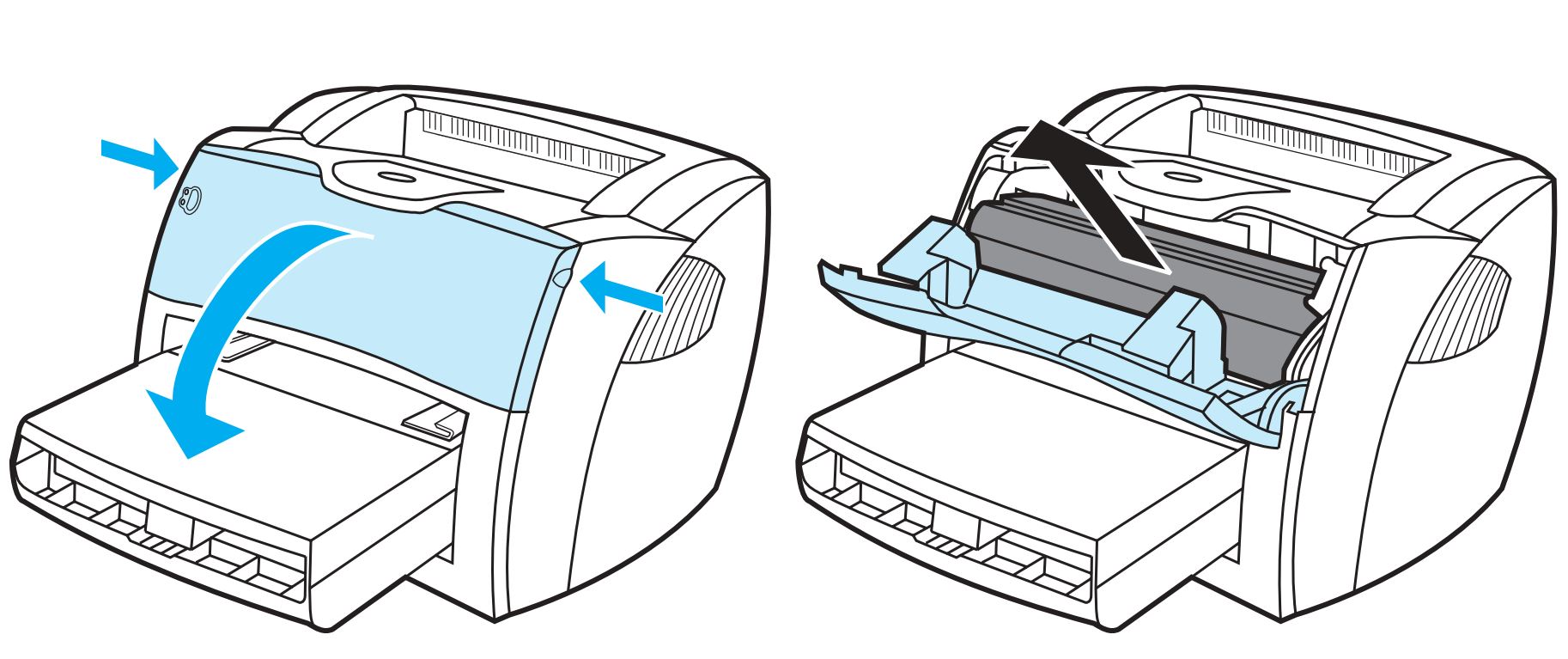
Accessing print cartridge
- Open the print cartridge door, and remove the old print cartridge. See the recycling information inside the print cartridge door.
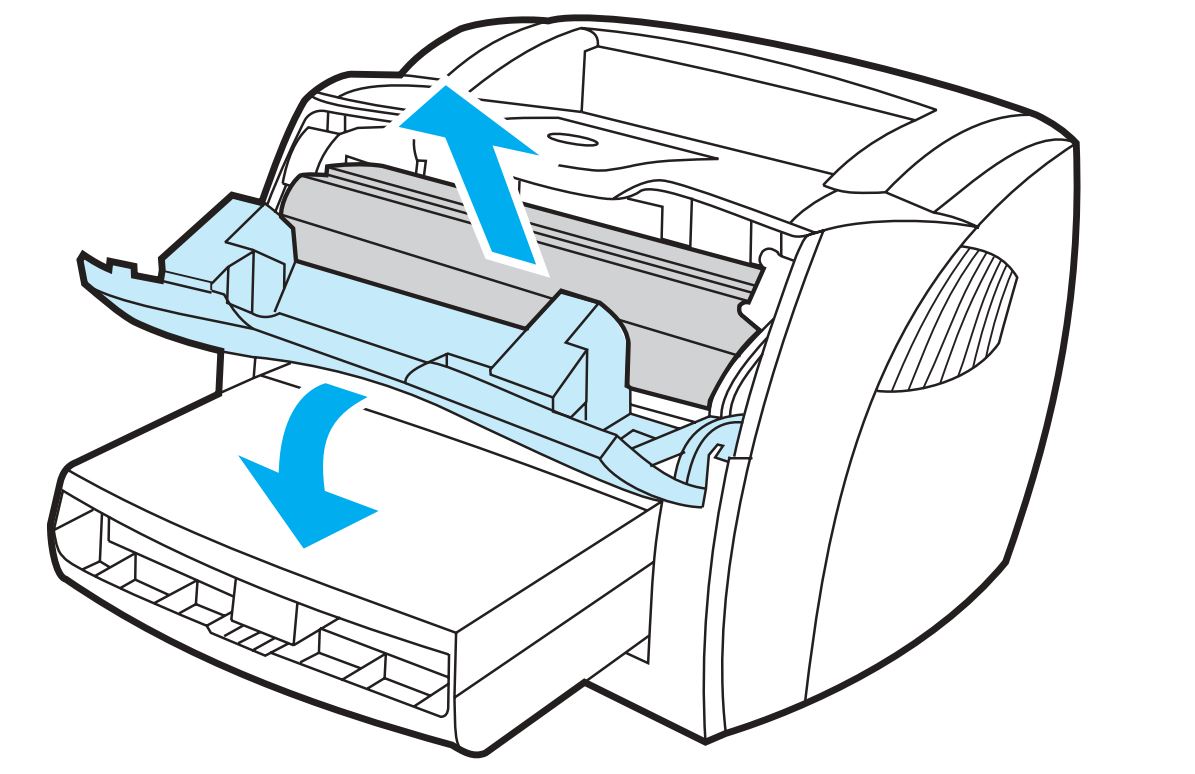
Print cartridge removed
- Remove the new print cartridge from the packaging, and gently shake it from side to side to distribute the toner evenly inside the cartridge.
Caution: To prevent damage, do not expose the print cartridge to light. Cover it with a sheet of paper.
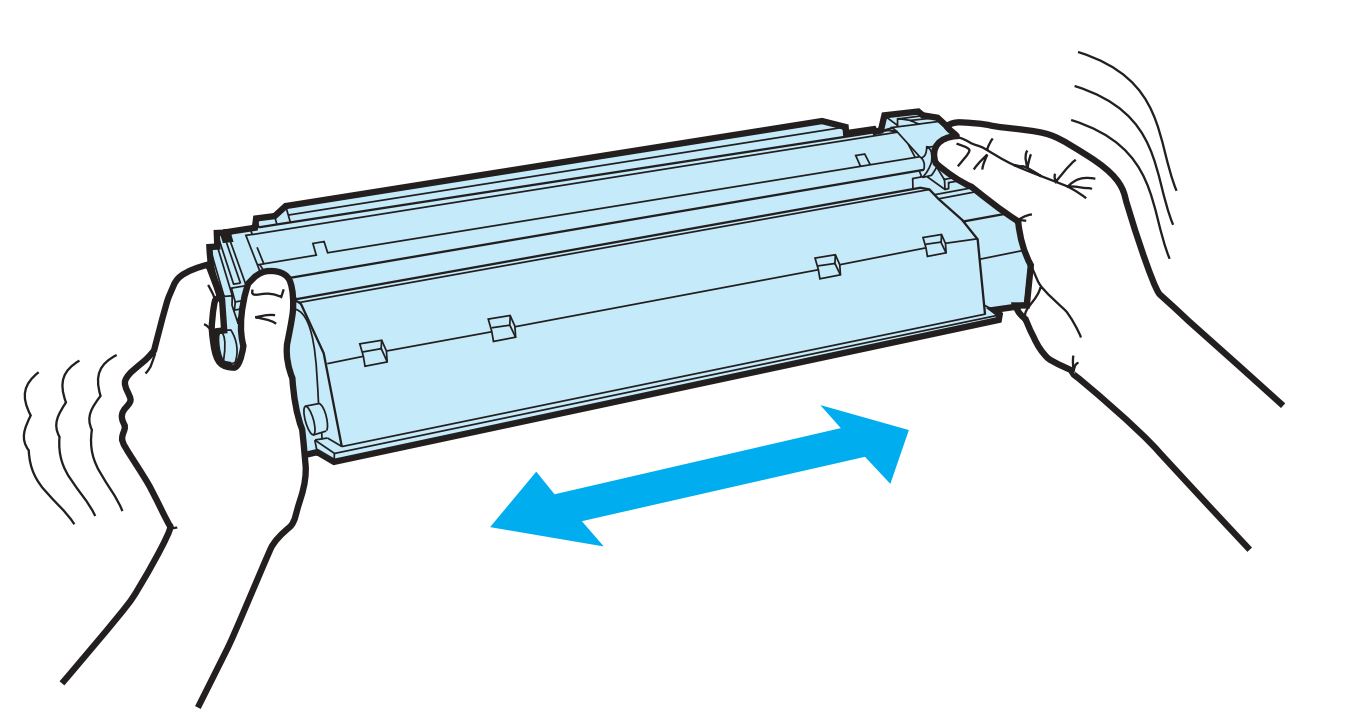
Distribute toner by shaking
- Bend the tab on the right side of the cartridge to break it loose.
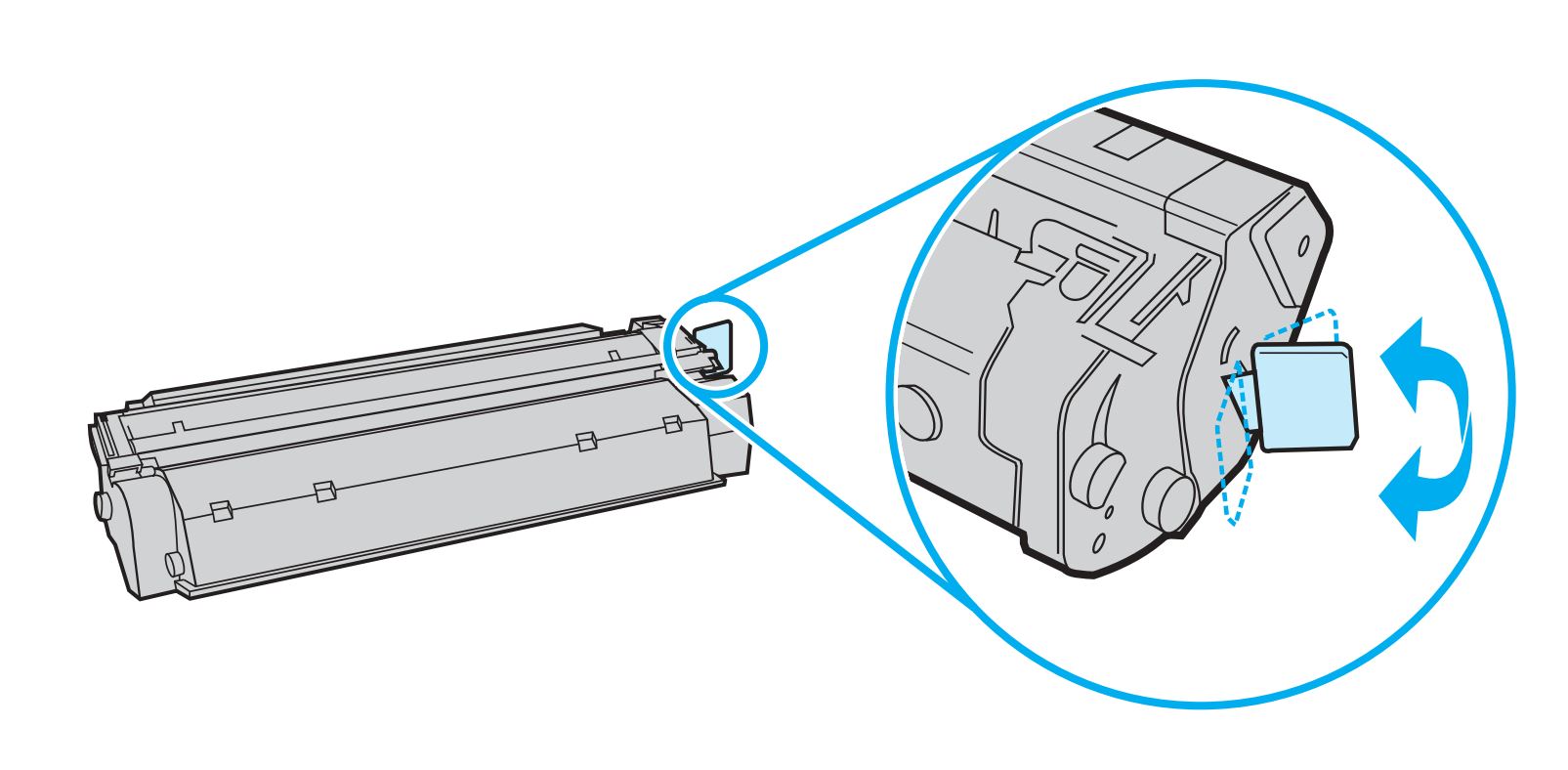
Location of tab on cartridge
- Pull the tab until all the tape is removed from the cartridge. Put the tab in the print cartridge box to return for recycling.
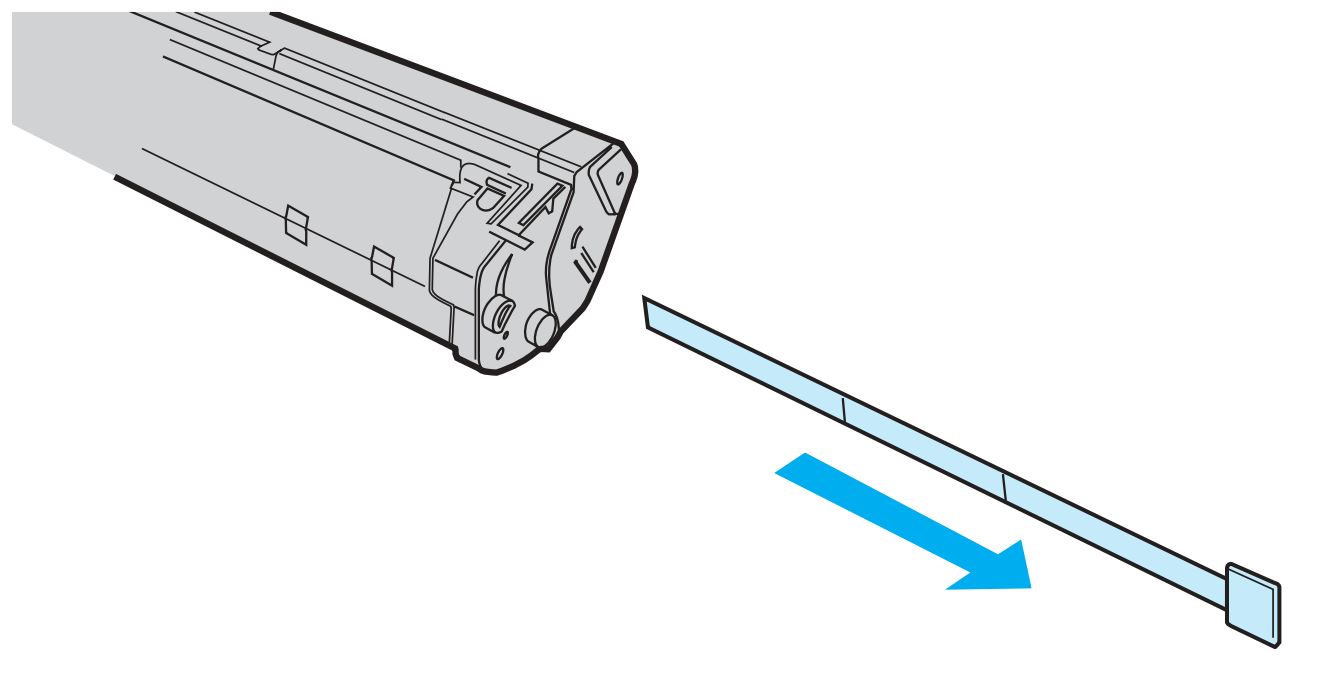
Tape removed from cartridge
- Insert the print cartridge into the printer, making sure that the print cartridge is in position. Close the print cartridge door.
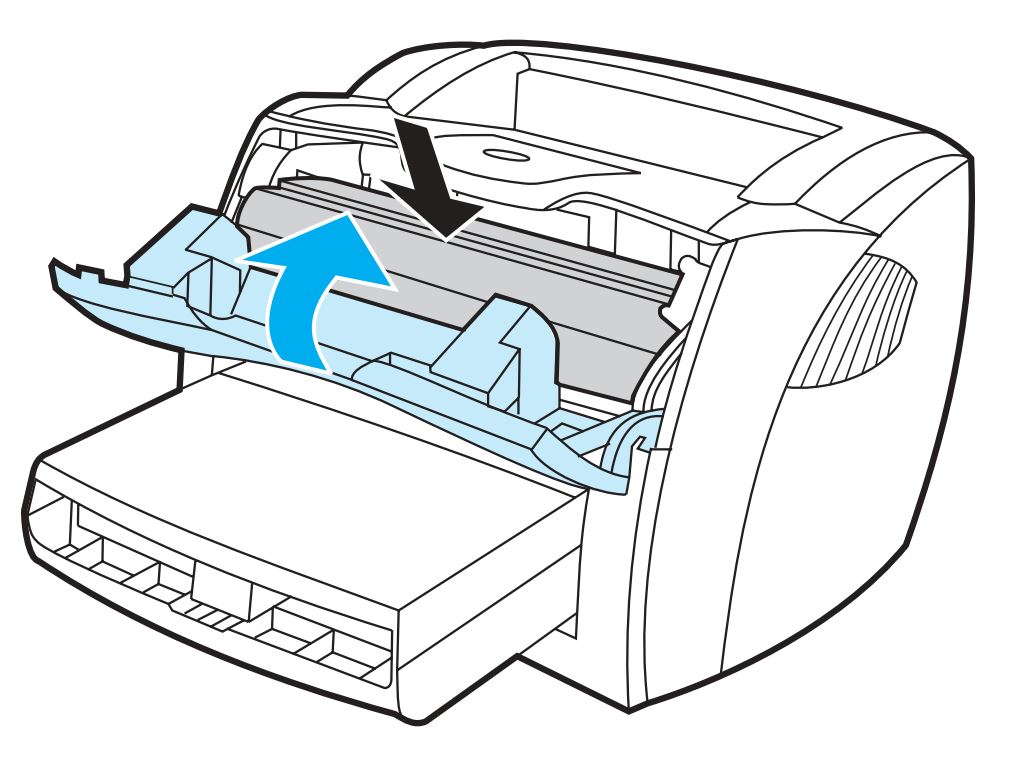
Print cartridge inserted and cover closed
Caution: If toner gets on clothing, wipe it off with a dry cloth and wash the clothing in cold water. Hot water sets toner into the fabric.
Replacing the pickup roller
If the printer regularly mispicks (no media feeds through or more than one sheet feeds through), it may be necessary to change or clean the pickup roller.
Note: Failure to complete these procedures when needed could cause damage to the printer.
- Unplug the power cord from the printer, and allow the printer to cool.
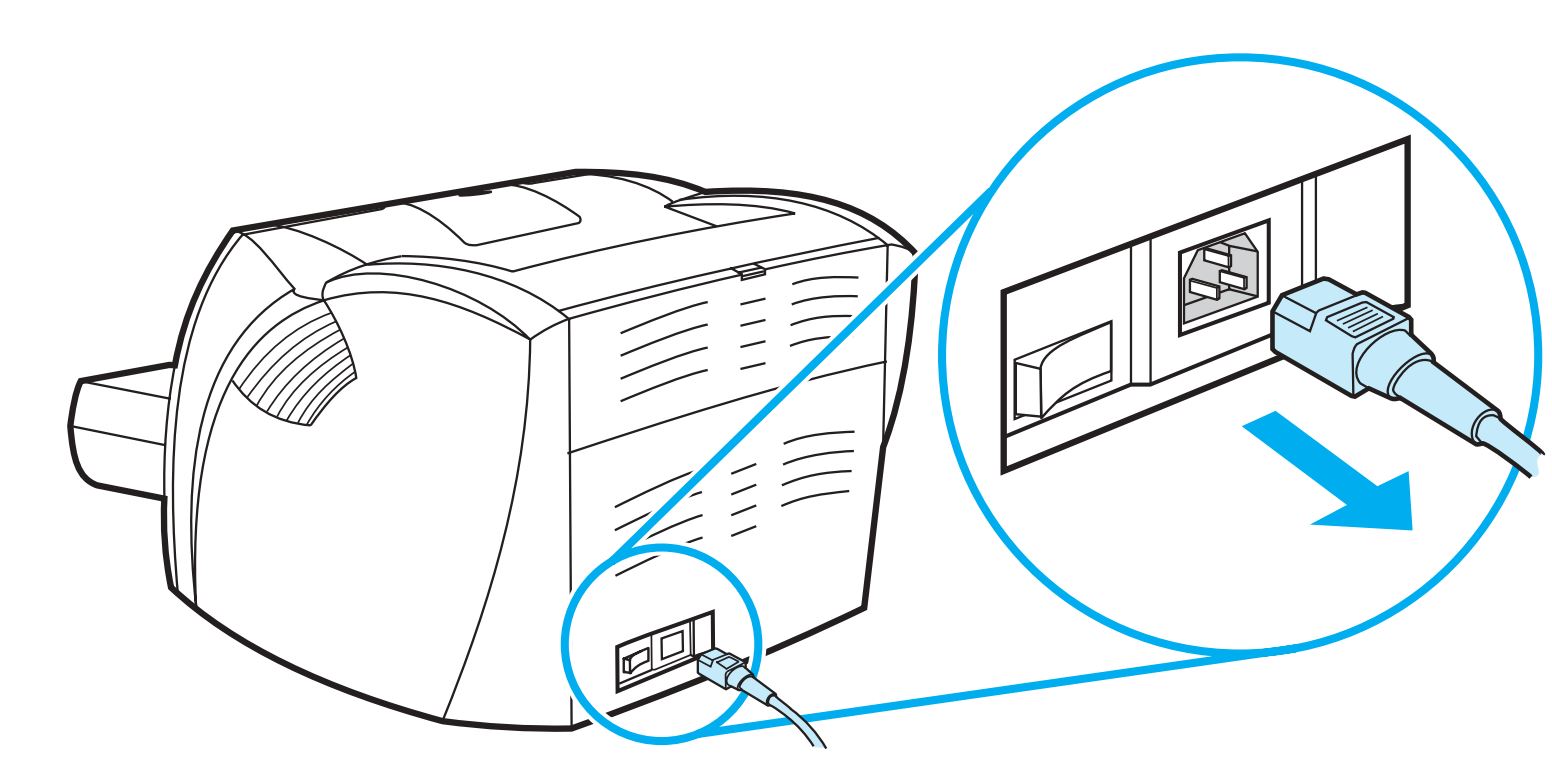
Power cord unplugged
- Open the print cartridge door, and remove the print cartridge
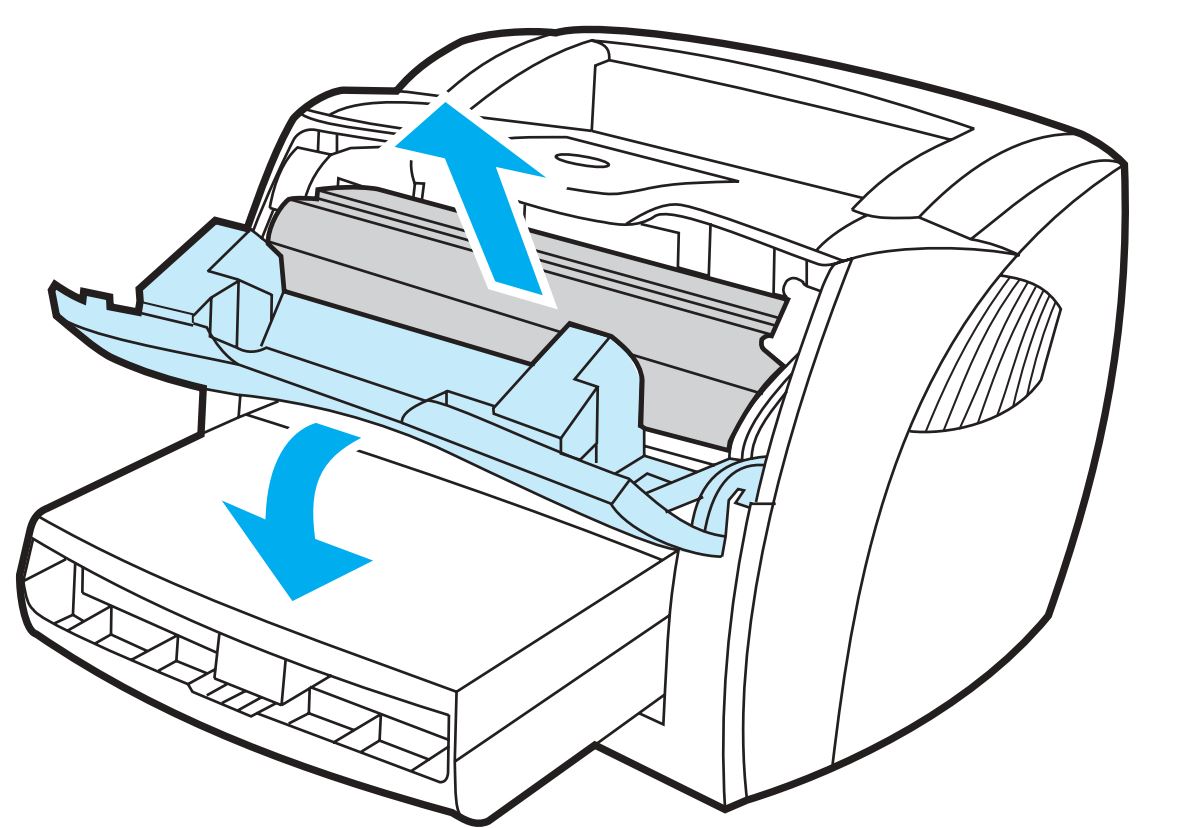
Print cartridge door opened and print cartridge removed
- Find the pickup roller.
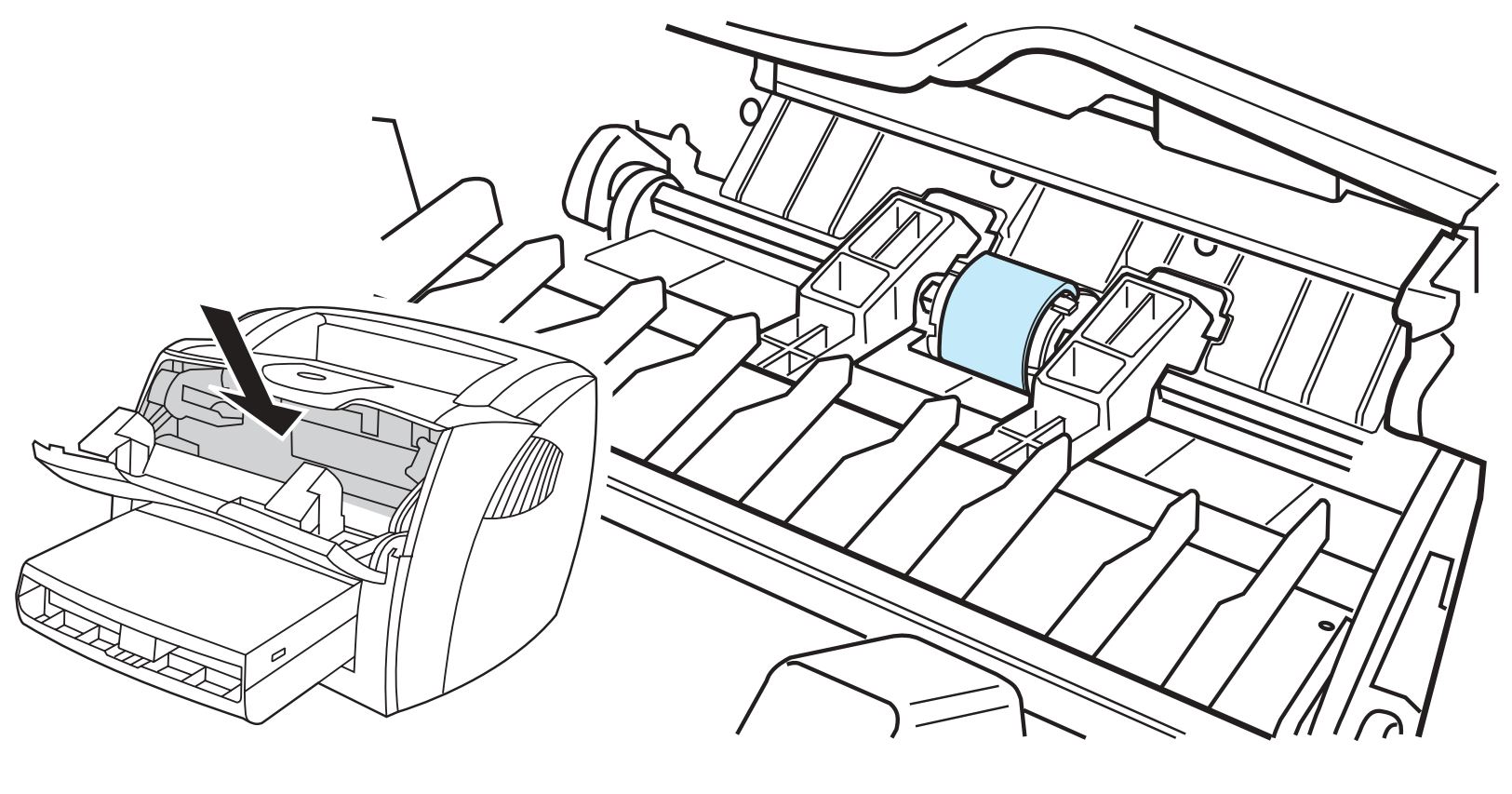
Location of pickup roller
- Release the small tabs on each side of the pickup roller by pushing them away from the roller, and rotate the pickup roller toward the front.
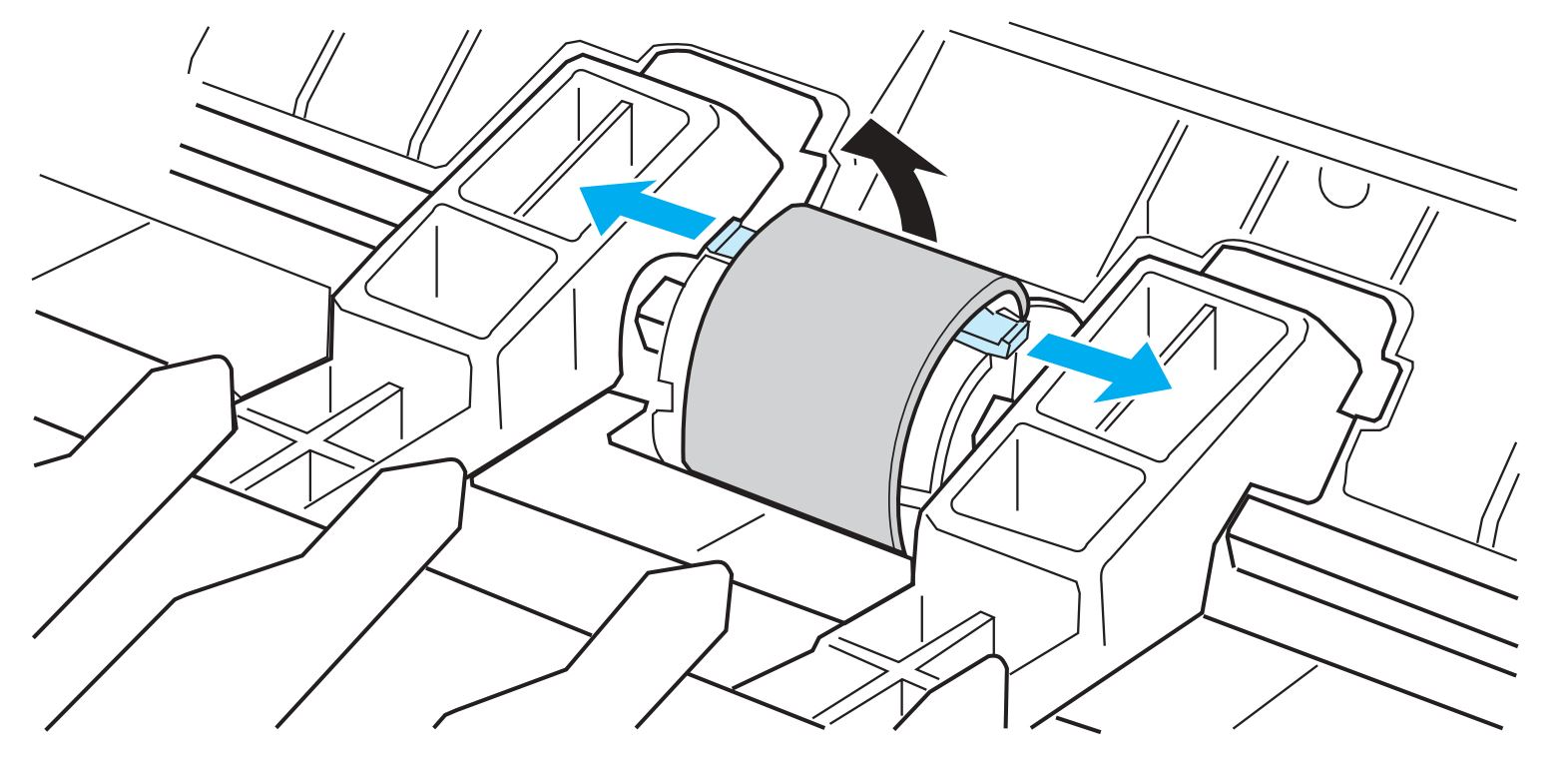
Tabs released and pickup roller rotated toward front
Caution: The tabs are fragile. Be careful not to break them.
- Gently pull the pickup roller up and out.
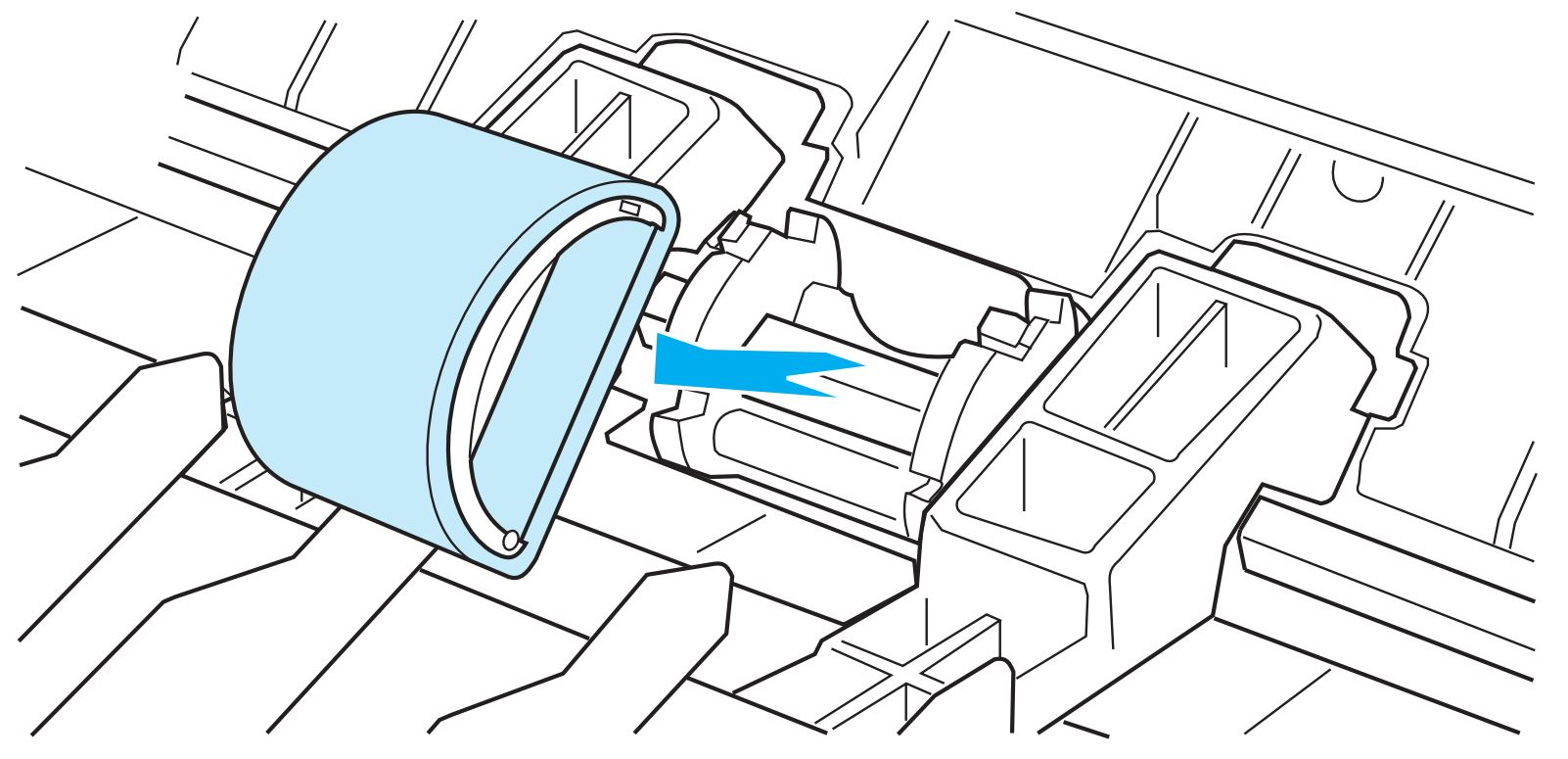
Pickup roller removed
- Position the new or cleaned part in the slot of the previous pickup roller. (Click here to go to "Cleaning the pickup roller" for instructions about cleaning.)
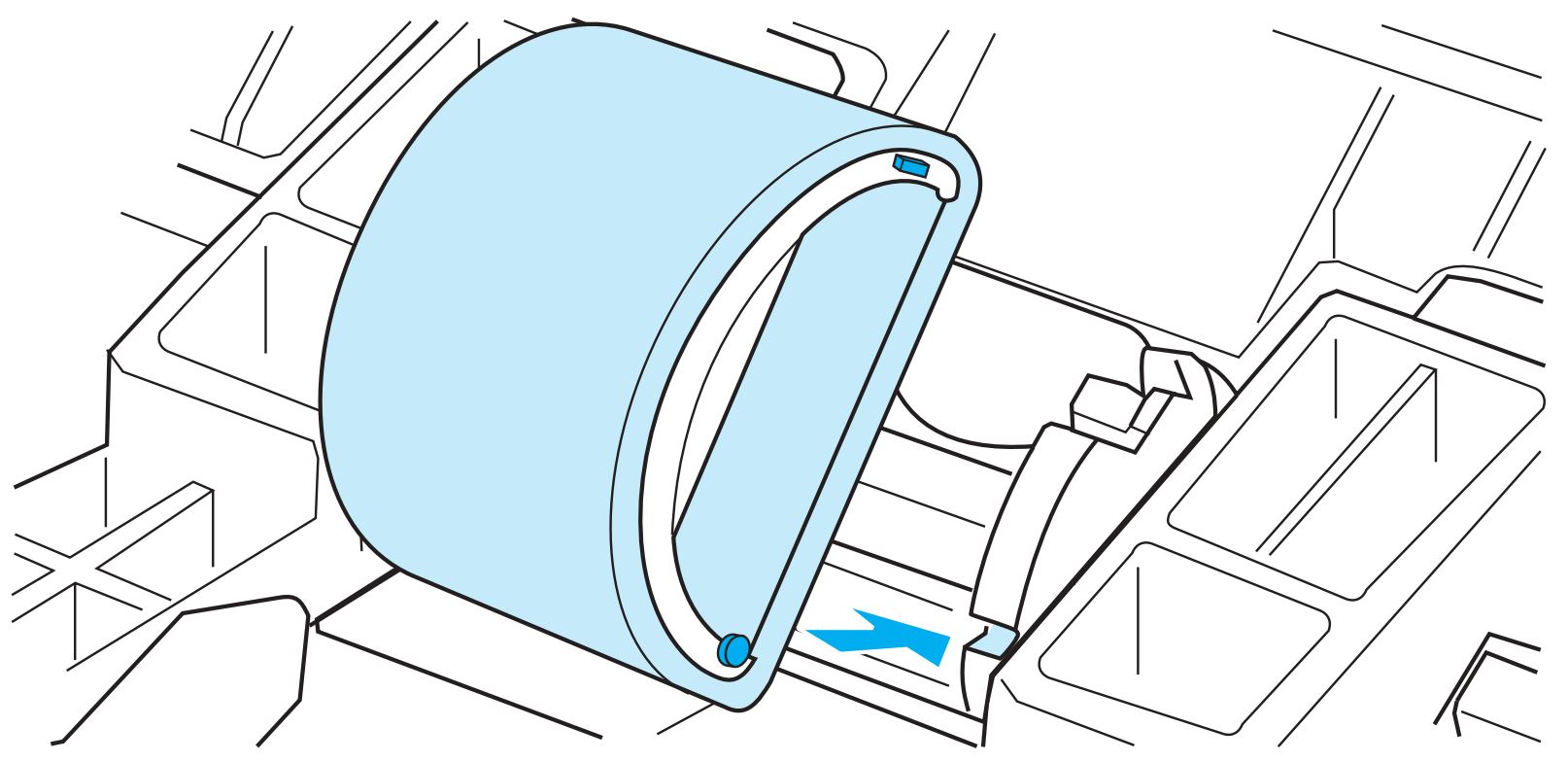
Pickup roller positioned in place
Note: Circular and rectangular pegs on each side prevent the pickup roller from being incorrectly positioned.
- Rotate the top of the new pickup roller into position until the tabs on each side of the roller snap into place.
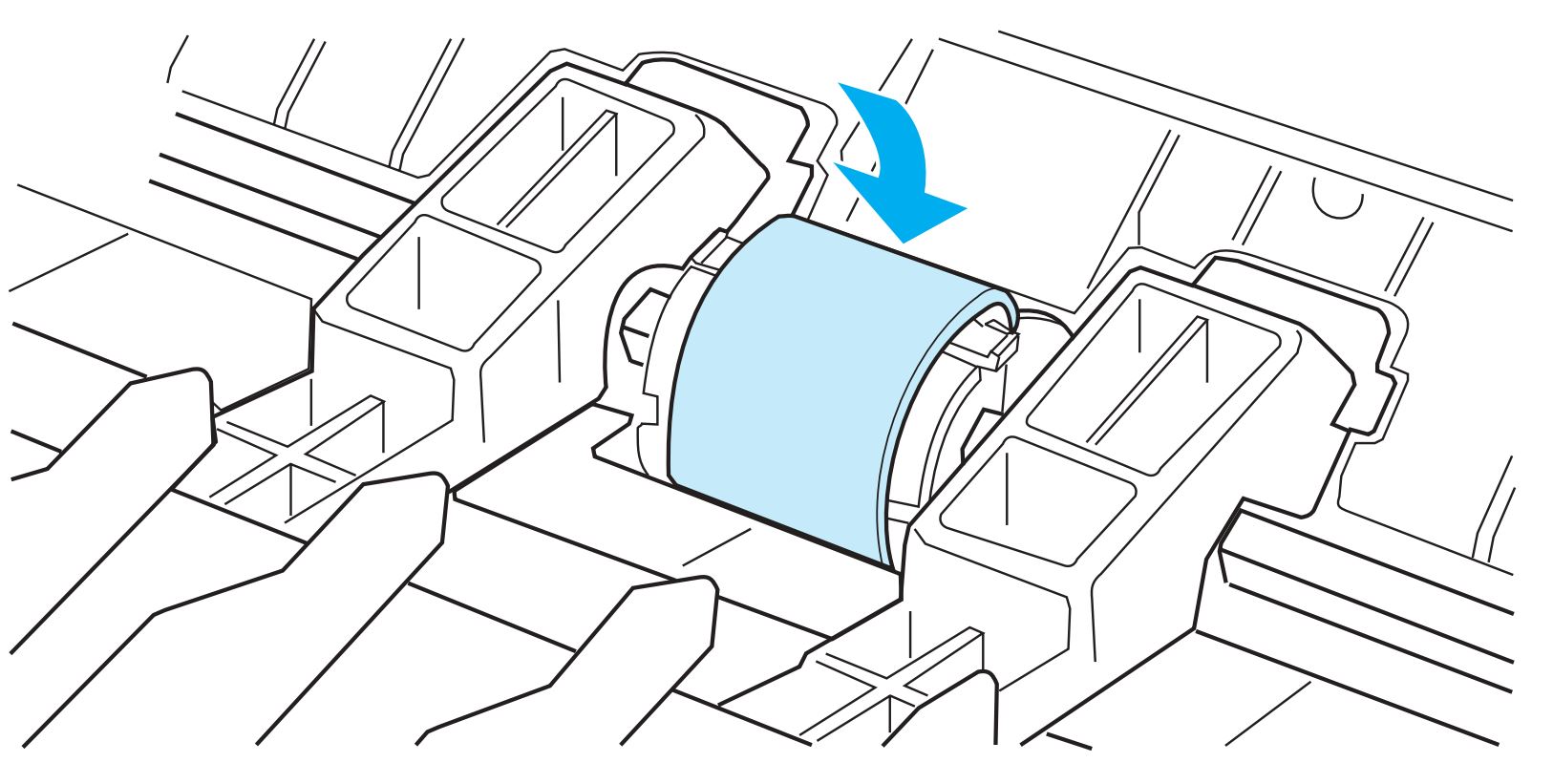
Pickup roller snapped into place
Caution: The tabs are fragile. Be careful not to break them.
- Reinstall the print cartridge, and close the print cartridge door.
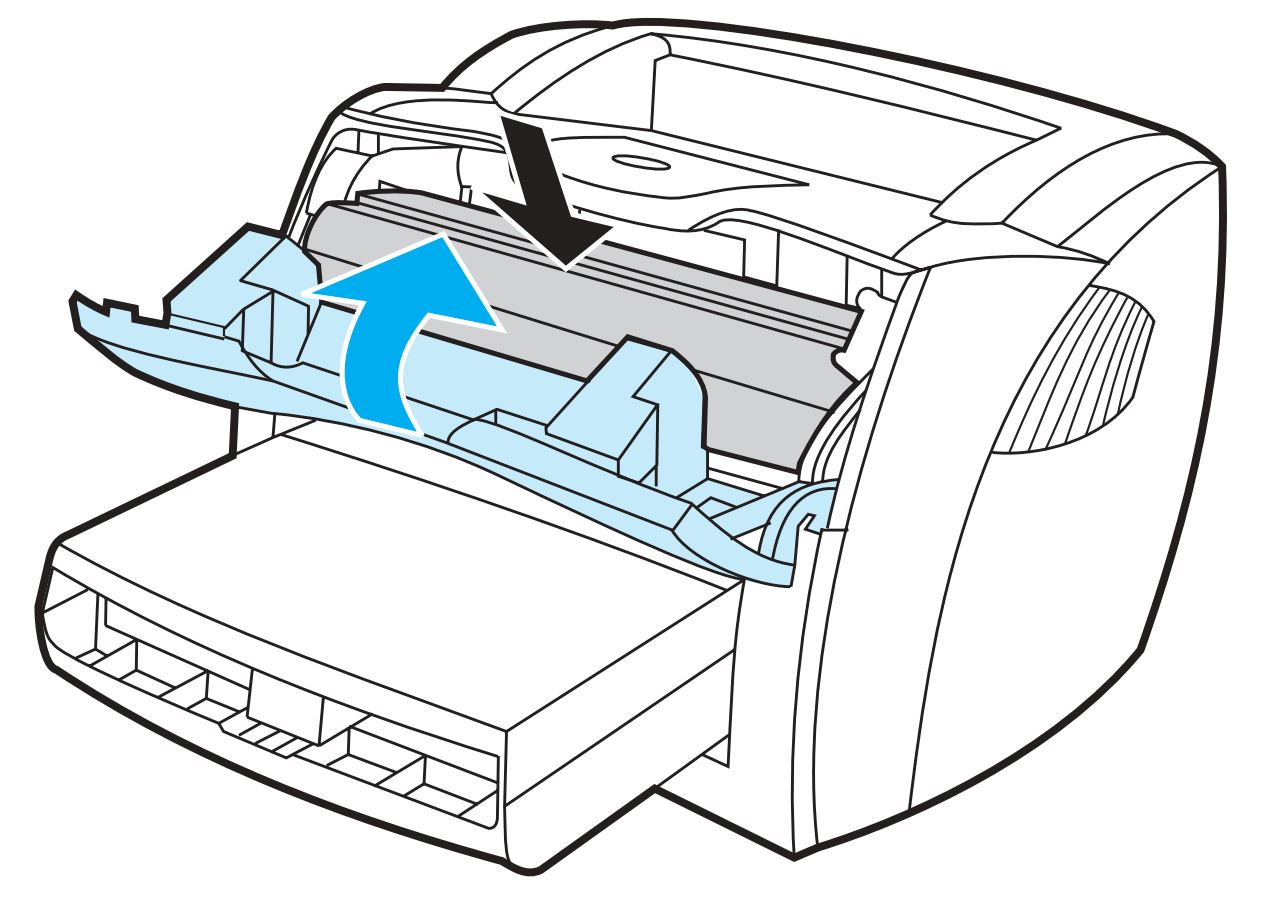
Print cartridge reinstalled
- Plug the power cord back into the printer to turn the printer on.
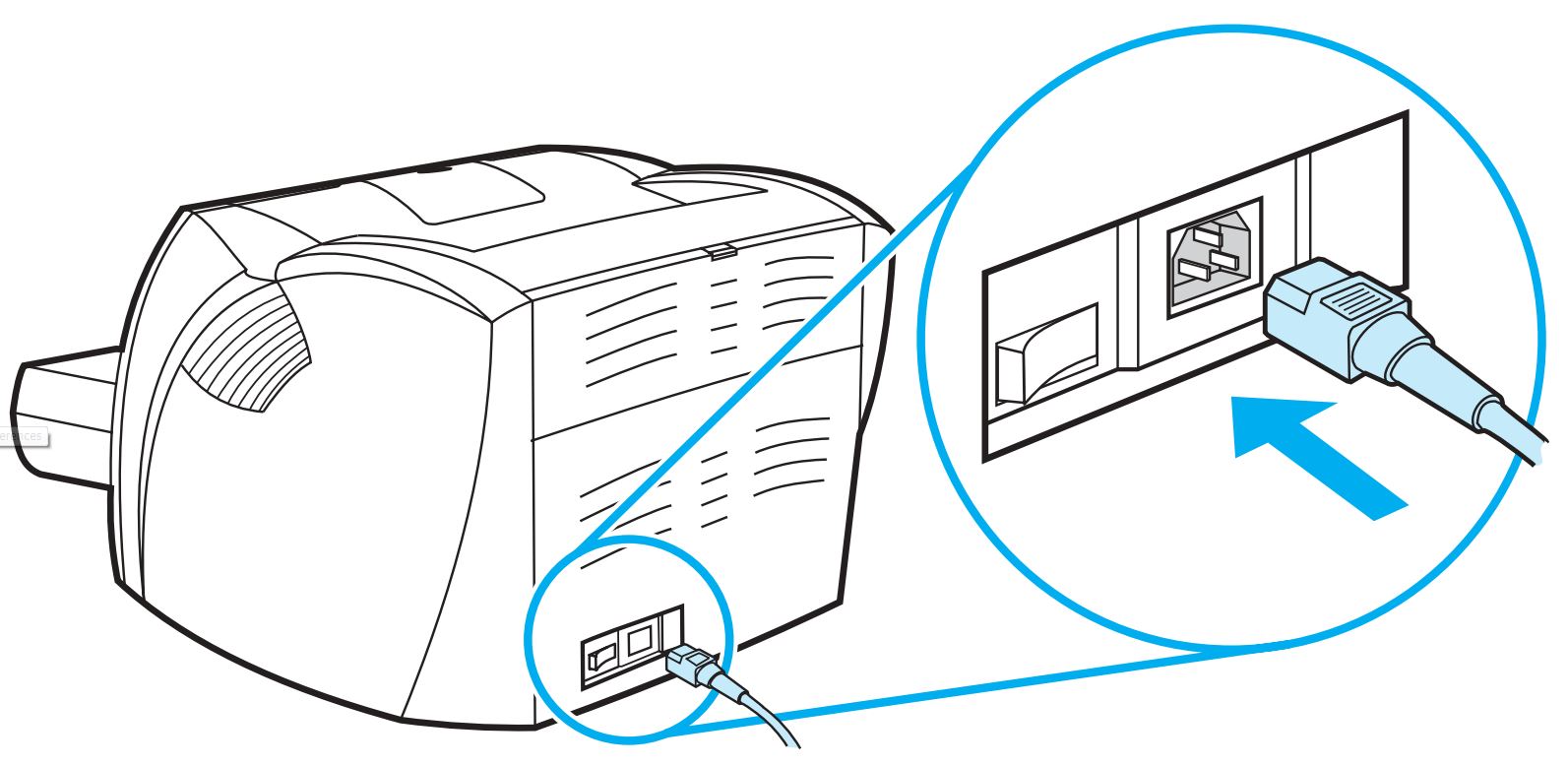
Power cord plugged in
Cleaning the pickup roller
Use the following steps to clean the pickup roller rather than replace it.
- Remove the pickup roller as described in Steps 1 through 5 for changing the pickup roller. (Click here to go to the steps for changing the pickup roller.)
- Dab a lint-free cloth in clean water, and scrub the roller
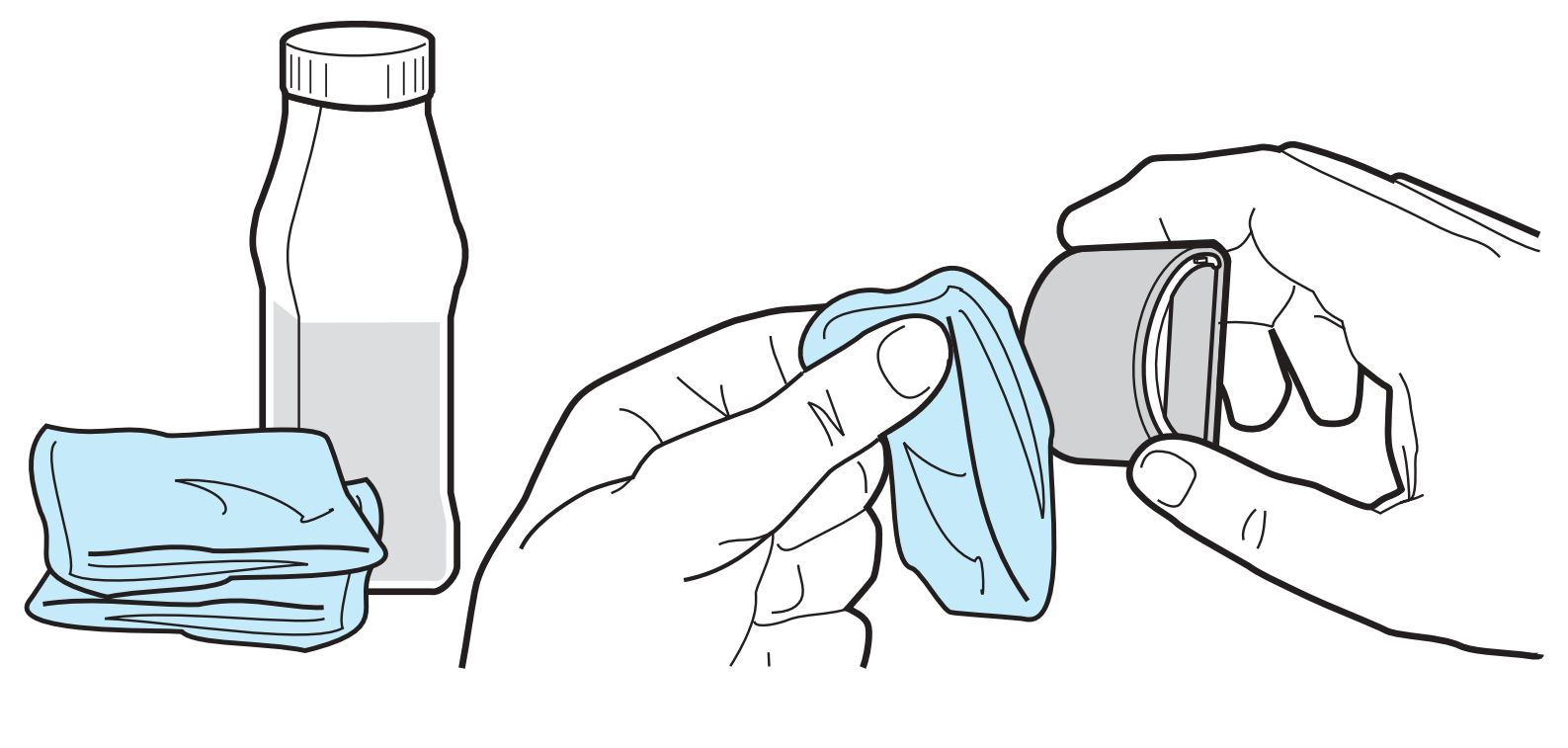
Roller scrubbed with clean water
- Using a dry, lint-free cloth, wipe the pickup roller to remove loosened dirt.
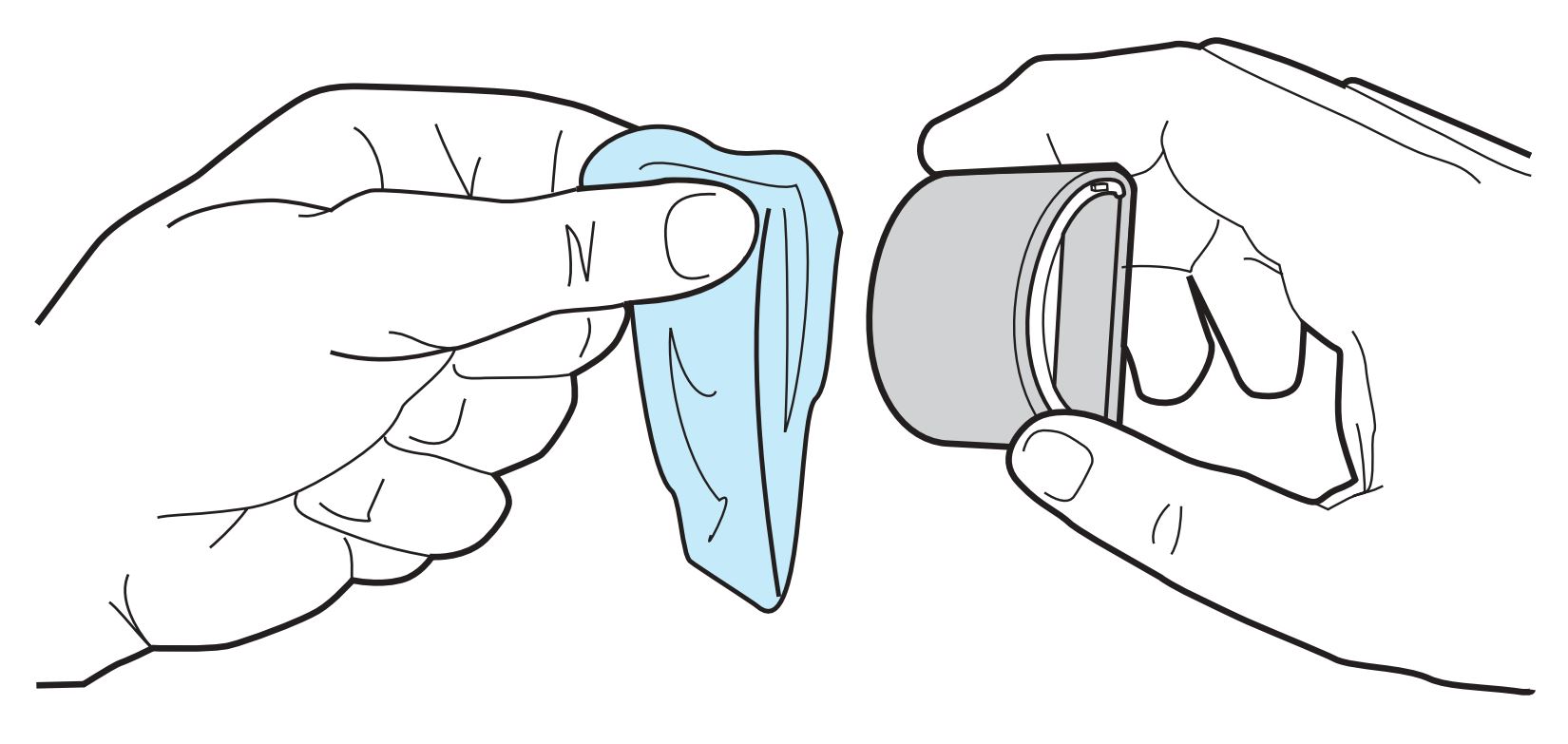
Roller wiped with lint-free cloth
- Allow the pickup roller to dry completely before reinstalling it in the printer. Reinstall the pickup roller as described in Steps 6 through 9 for changing the pickup roller. (Click here to go to the steps for reinstalling the pickup roller.).
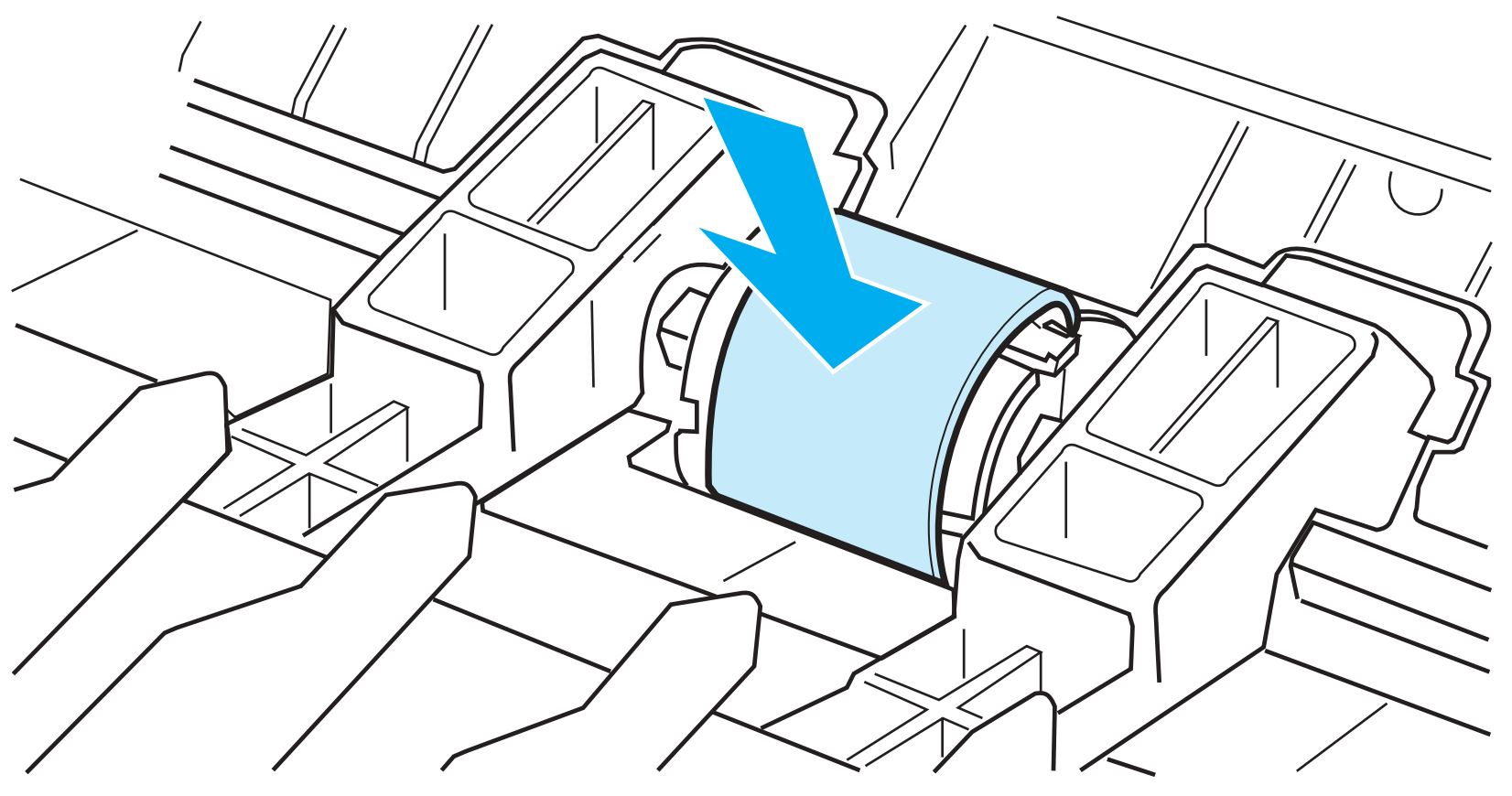
Pickup roller snapped into place
Replacing the printer separation pad
If the input tray feeds more than one page at a time, it might be necessary to change the printer separation pad. Recurring feed problems indicate that the printer separation pad is worn.
Caution: During this procedure, be careful not to break the tabs on the separation pad.
Use the following steps to change the printer separation pad.
- Unplug the power cord from the printer, and allow the printer to cool.
Power cord unplugged
- Remove the input trays
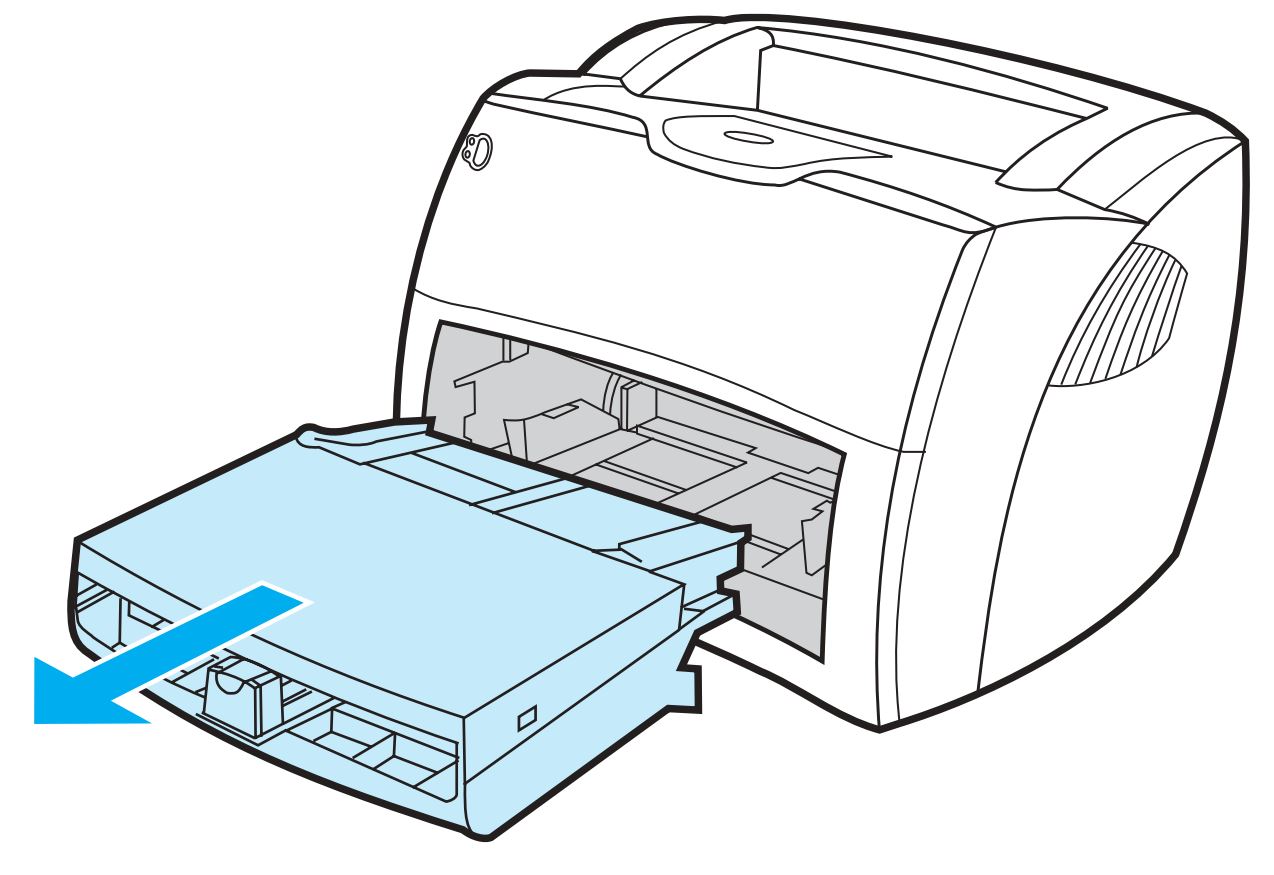
Input trays removed
- Find the blue separation pad. (For the HP LaserJet 1300 series, it might be necessary to push down the media lift plate to see the separation pad.)
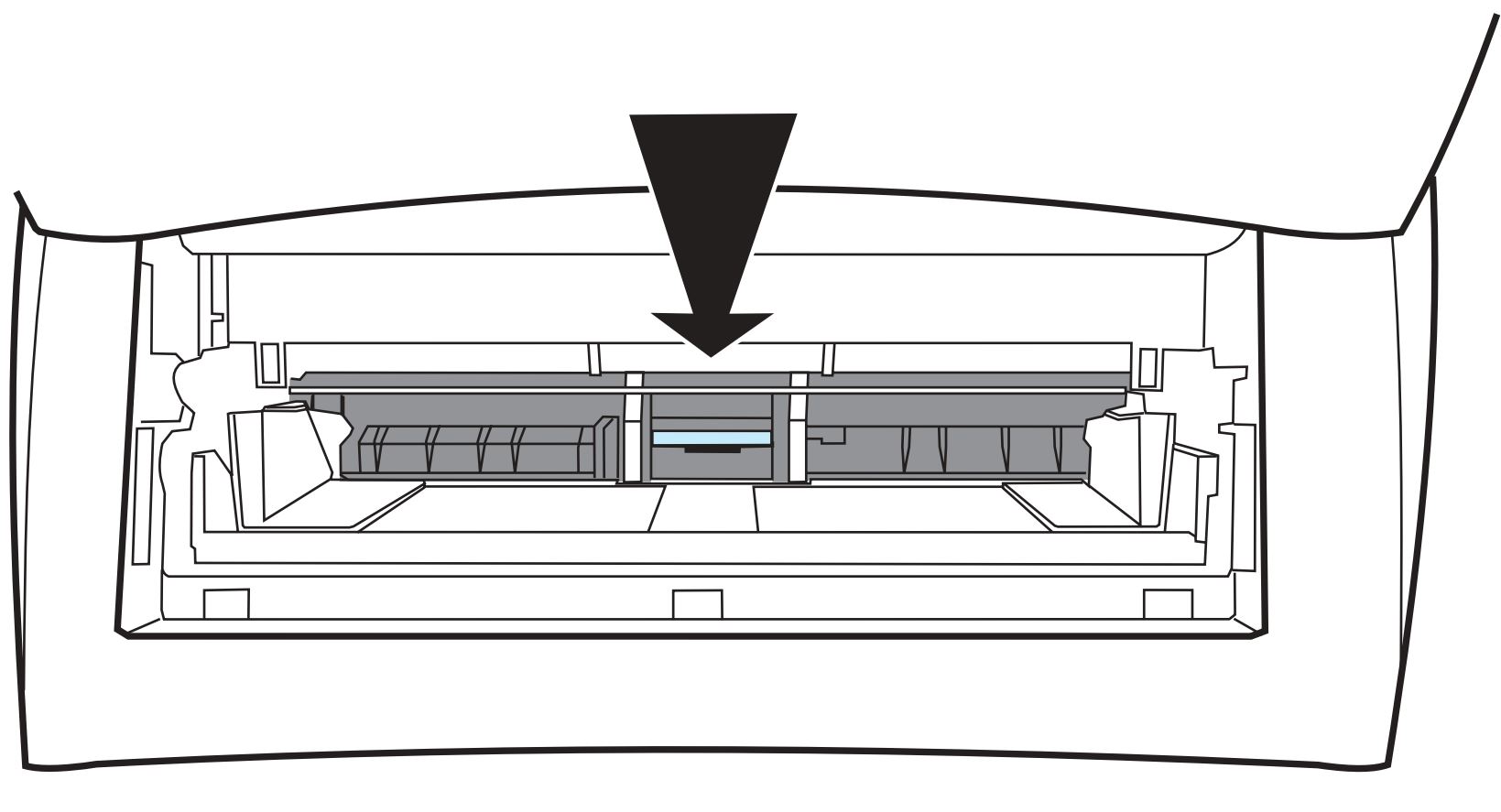
Blue separation pad
- To pry the separation pad up from the spring-loaded base, insert a flat-edged screwdriver in the slot under the separation pad and twist until the tabs are free.
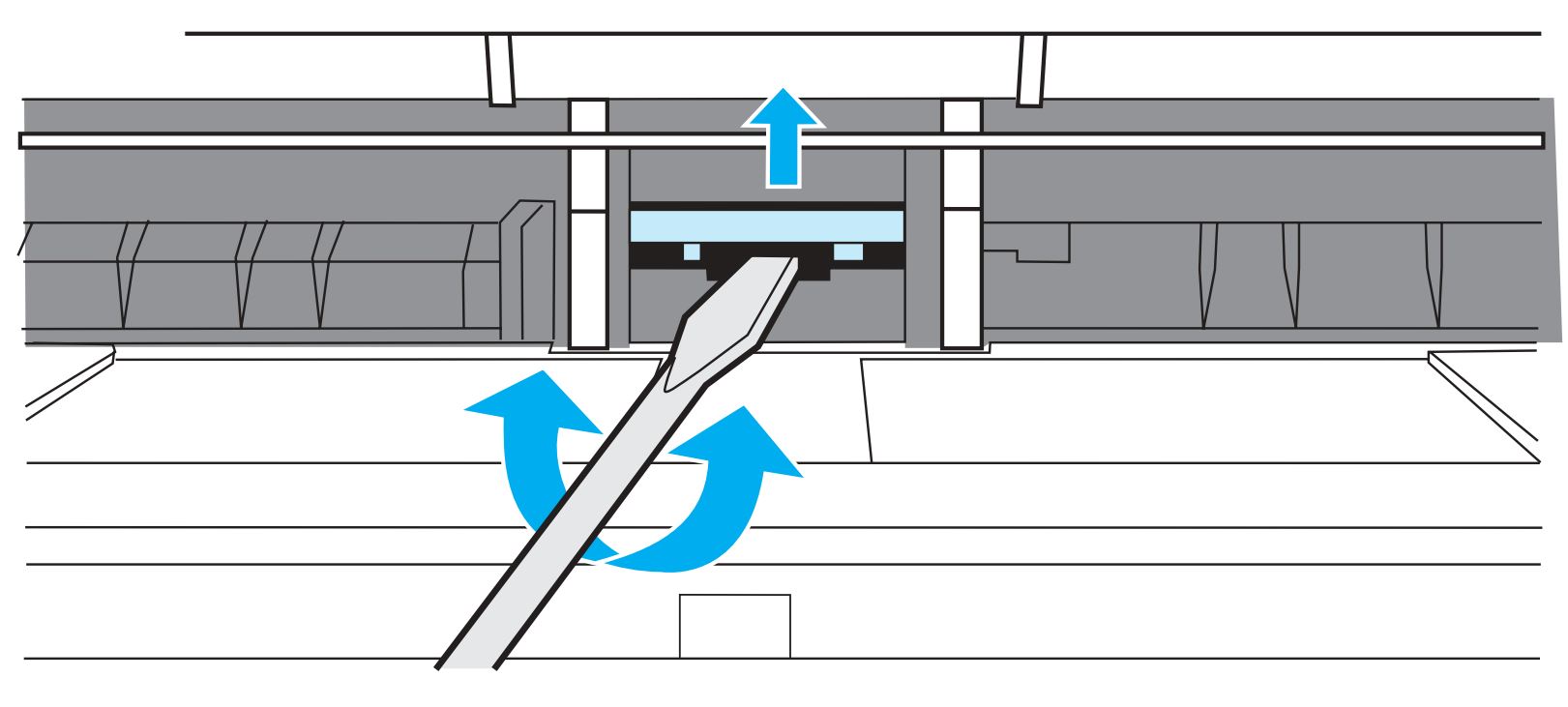
Separation pad freed from spring-loaded base
Caution: The tabs are fragile. Be careful not to break them.
- Reach in through the opening, push the spring-loaded base down with one hand, and pull the separation pad up with the other hand.
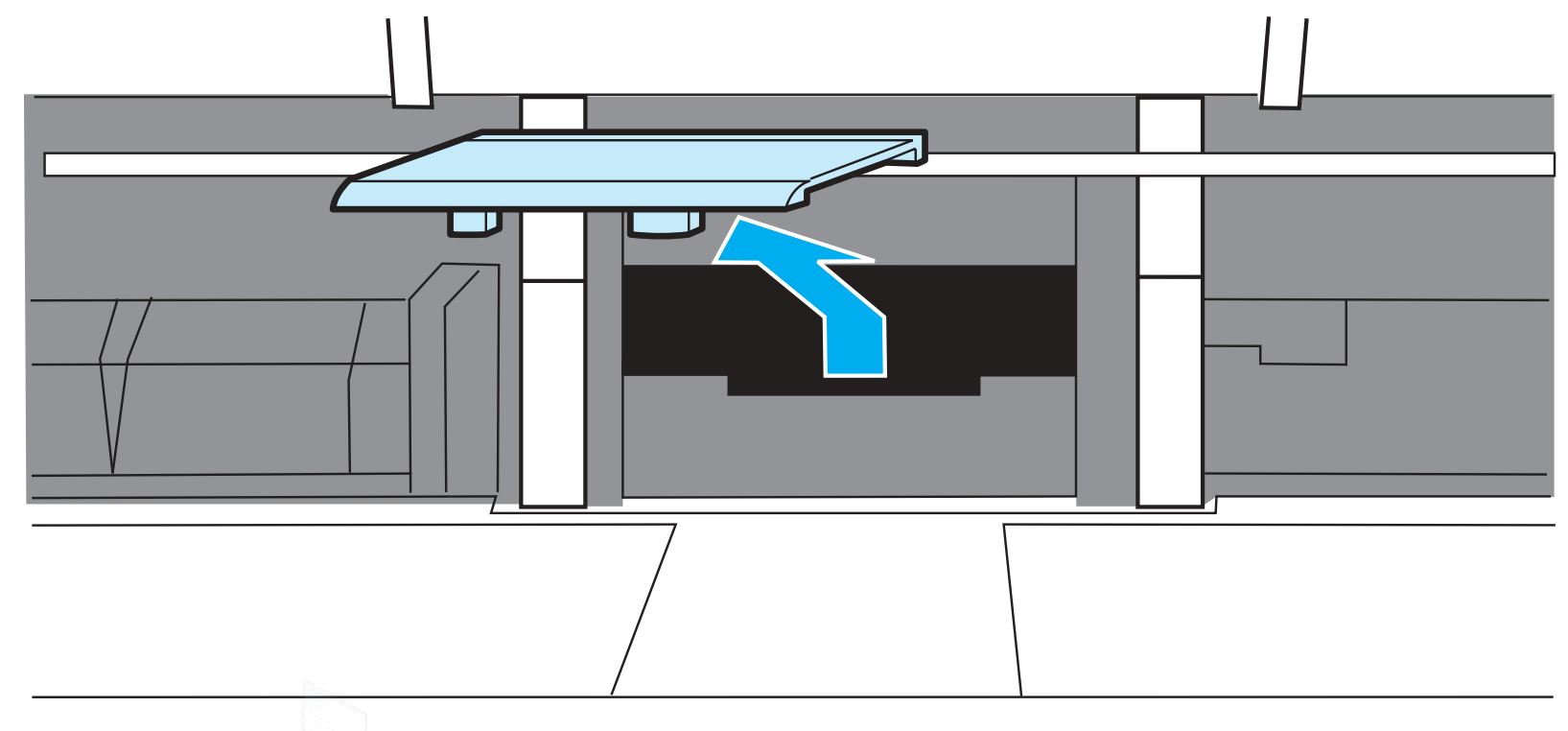
Separation pad removed
- With one hand, position the new separation pad in the slot of the previous separation pad (callout A). With the other hand, reach through the input tray opening, and push the spring-loaded base down (callout B)
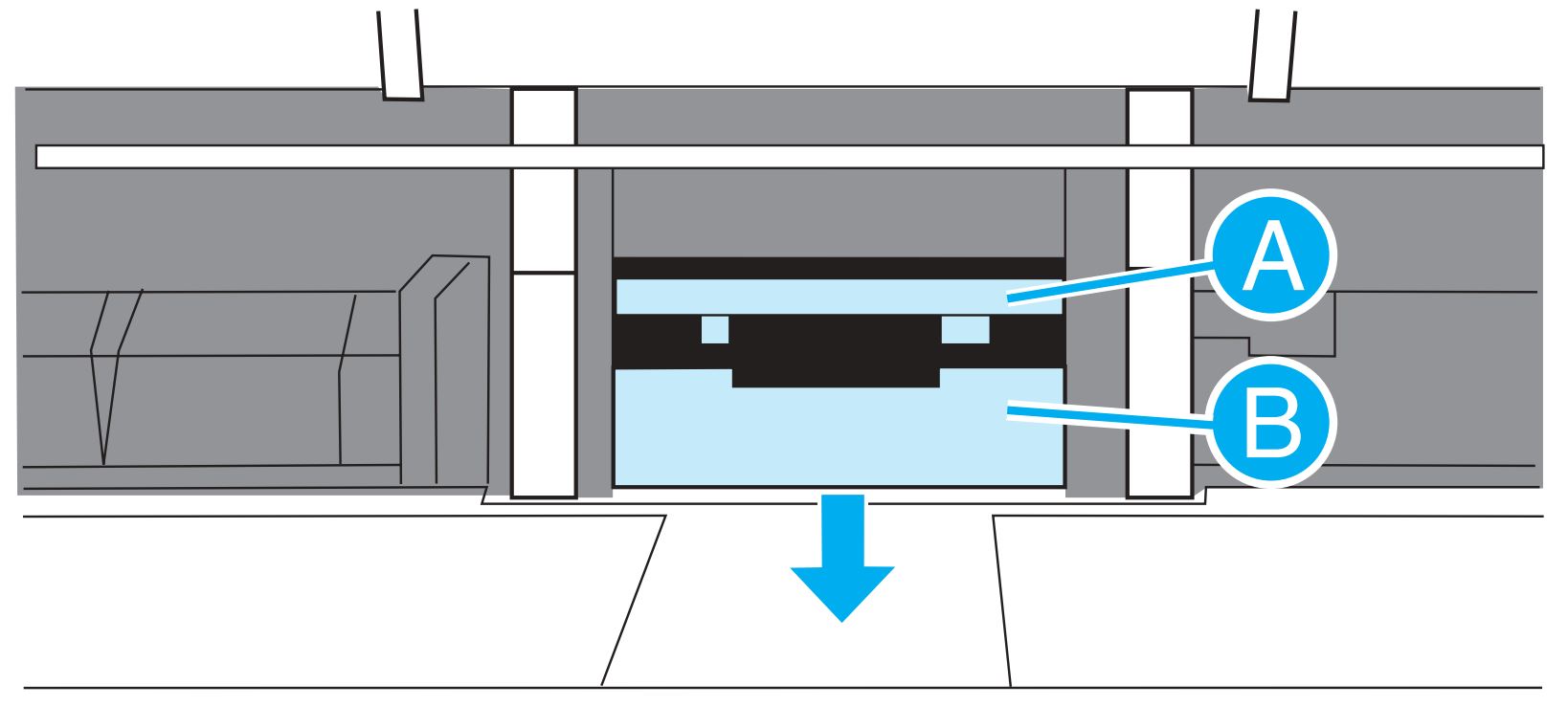
A - New separation slot positioned in slot
B - Spring loaded base
Note: The tab on the right is larger to help in positioning it correctly.
- Snap both sides of the separation pad firmly into place.
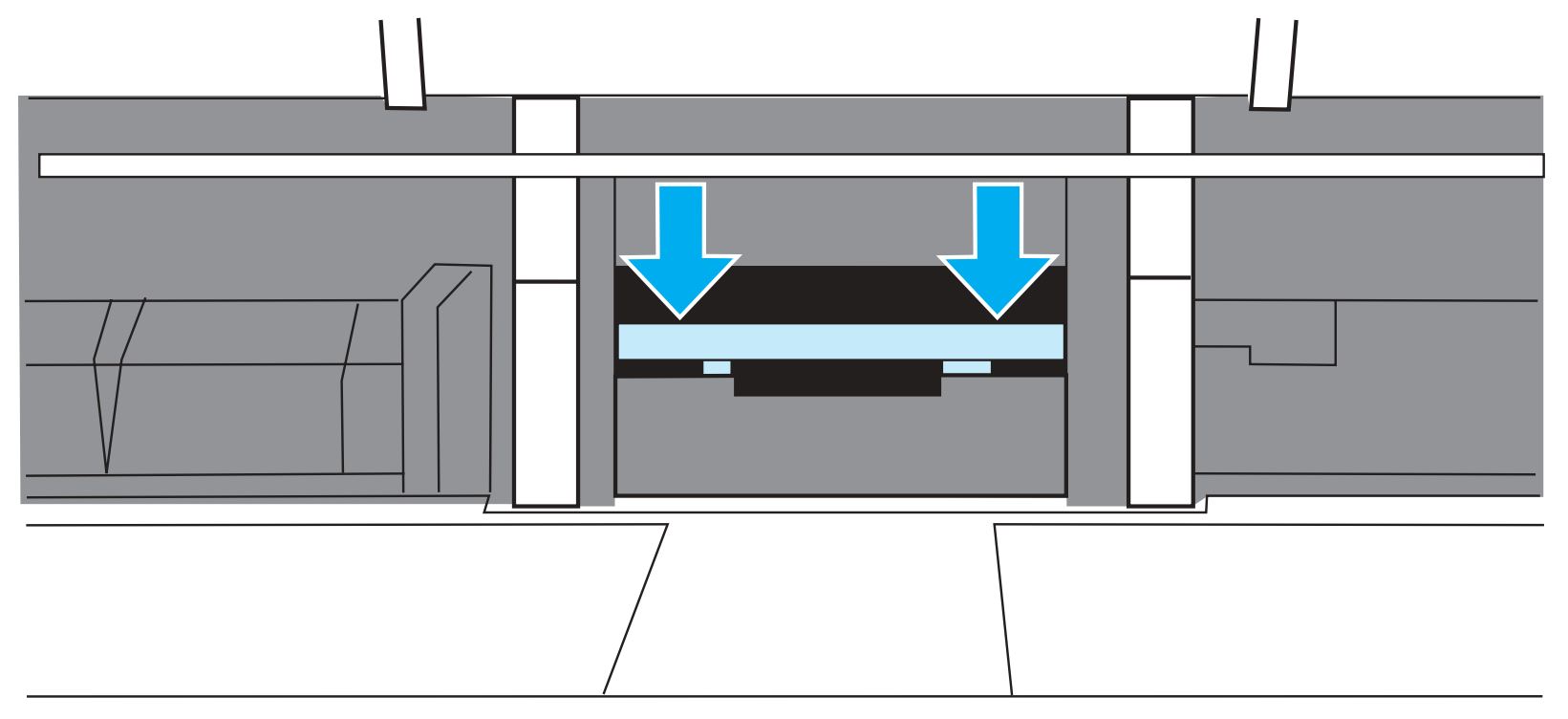
Separation pad snapped into place
Caution: Make sure that the separation pad is straight and that there is no space between the separation pad and the spring-loaded base. If the separation pad is not straight or there is a space on one side, remove the separation pad, make sure that the larger tab is on the right, reinsert the separation pad, and snap both sides into place.
- Reinsert the pickup roller, print cartridge, and input trays. Plug the printer in to turn it back on.
Printer plugged in
Ordering supplies and accessories
The following table lists common HP supplies and accessories.
|
Type
|
Item
|
Description or use
|
Part number
|
|---|
| Print cartridges for the HP LaserJet 1300 series printer |
UltraPrecise print cartridges |
Replacement print cartridges for the HP LaserJet 1300 series printers. |
HP Q2613A (2,500-page cartridge)
HP Q2613X (4,000-page cartridge) |
| Print cartridge for the HP LaserJet 1150 printer |
UltraPrecise print cartridge |
Replacement print cartridges for the HP LaserJet 1300 series printers. |
HP Q2624X |
| Maintenance Kit for the HP LaserJet 1300 series printer |
120 Volt Maintenance Kit |
Used to perform maintenance on the printer. |
HP LJ-1300-KIT |
Replacement parts
(included in kit) |
Media pickup roller |
Used to pick the media from the input tray and advance it through the printer. |
HP RL1-0303-000 |
| Separation pad for the printer |
Used to keep multiple sheets from feeding through the printer path. |
HP RF0-1014-000 |
| Transfer roller for the printer |
Used to transfer images onto paper. |
HP RG9-1483-000 |
| Fuser assembly for the printer |
Unit that fuses the toner onto the paper being printed on. |
HP RM1-0715-030 |
- Publisher: Precision Roller
|
|









 Lexmark Black Toner Cartridge