










|
HP LaserJet P4015DN Printer Reset Maintenance Count Procedure
Originally written for: HP LaserJet P4015dn
Also applies to: HP LaserJet P4014, P4014dn, P4014n, P4015n, P4015tn, P4015x, P4515n, P4515tn, P4515x, P4515xm

These instructions explain the procedure to reset the maintenance counter on an HP Laserjet P4015 and similar models. To order your replacement maintenance kit for this printer, use the following part: A9556 (Mfr Part #: HP CB388A, CB388-67901) After installing a maintenance kit, you should reset the printer's "Maintenance Count." There are two ways to do this, depending on your firmware version. Method 1 1. Turn the printer to the "off" position. 2. Power on the printer. 3. Press and hold down the "OK" button while the memory is counting. The memory begins counting at 000MB immediately after you power on the device. 4. Continue to hold down the "OK" button until all three LEDs are illuminated. 5. Release the OK button. 6. Press the up arrow (Navigation) button until the message "New Maintenance Kit" appears on the control panel display. If New Maintenance Kit is not an option then your printer hardware contains an older firmware version (see below). 7. Press the OK button once. Your maintenance counter is reset. Note: Method 2 1. Enter the Service Menu -- Press the MENU button, and scroll through the list of menus until you see "SERVICE". Press OK. 2. Before you can enter the Service Menu, a blank line will appear on the screen where an access code will be required: On a LaserJet P4014, the access code is 05401408 On a LaserJet P4015, the access code is 05401508 On a LaserJet P4515, the access code is 05451508 3. Enter the code and press OK. 4. The Service Menu should now appear. Scroll through the list of options until you see "Maintenance Count." Press OK. 5. Change the current maintenance count to "0" by pressing the number "0", then pressing the "OK" button. Note:
|



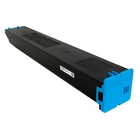 Sharp MX-61NTCA Cyan Toner Cartridge
©2003-2024 Precision Roller. • 2102 West Quail Avenue, Suite 1 • Phoenix, AZ 85027 • (800) 323-9523 / (623) 581-3330 • M-F 8:00am - 4:30pm MST (noDST)
Individual brands are copyrighted by their respective owners. Precision Roller is in no way affiliated, sponsored or endorsed by these copyright owners or their affiliates or dealers
This website uses a secure server to encrypt all sensitive information.
Questions? Concerns? Send us a note at webmaster@precisionroller.com
This website uses a secure server to encrypt all sensitive information.
Questions? Concerns? Send us a note at webmaster@precisionroller.com