Originally written for: Brother HL-2240D
Also applies to: Brother HL-2220, 2230, 2240, 2270DW, 2280DW, MFC-7360N, 7460DN, 7860DW
These instructions explain how to manually reset the out of toner light on a Brother HL-2240D family of laser printers.
|
Manually resetting change toner light
When the toner becomes low, the TONER LED indicator light will flash continuously until replaced. Once the toner cartridge is empty, the printer will enter a “REPLACE TONER” mode that ceases print functionality until the toner cartridge is replaced. If installing a new toner cartridge did not resolve the issue, try the following steps to manually reset your change toner light.
- Make sure that the printer is turned off.
- Open the front cover of the printer.
- Press and hold the GO button while turning the printer on.
- Continue to hold the GO button until the Toner, Drum, and Error LEDs are on and the Ready LED is off. All of the LEDs will turn off.
- Press the Go button two (2) times (do not hold the GO button down). The Toner, Drum, and Error LEDs will illuminate.
- For the TN420 / TN2210 cartridge, press the Go button six (6) times, or
- For the TN450 / TN2220 cartridge, press the Go button seven (7) times.
- At this time the Error LED should be flashing. Please close the front cover.
|
- Publisher: Precision Roller










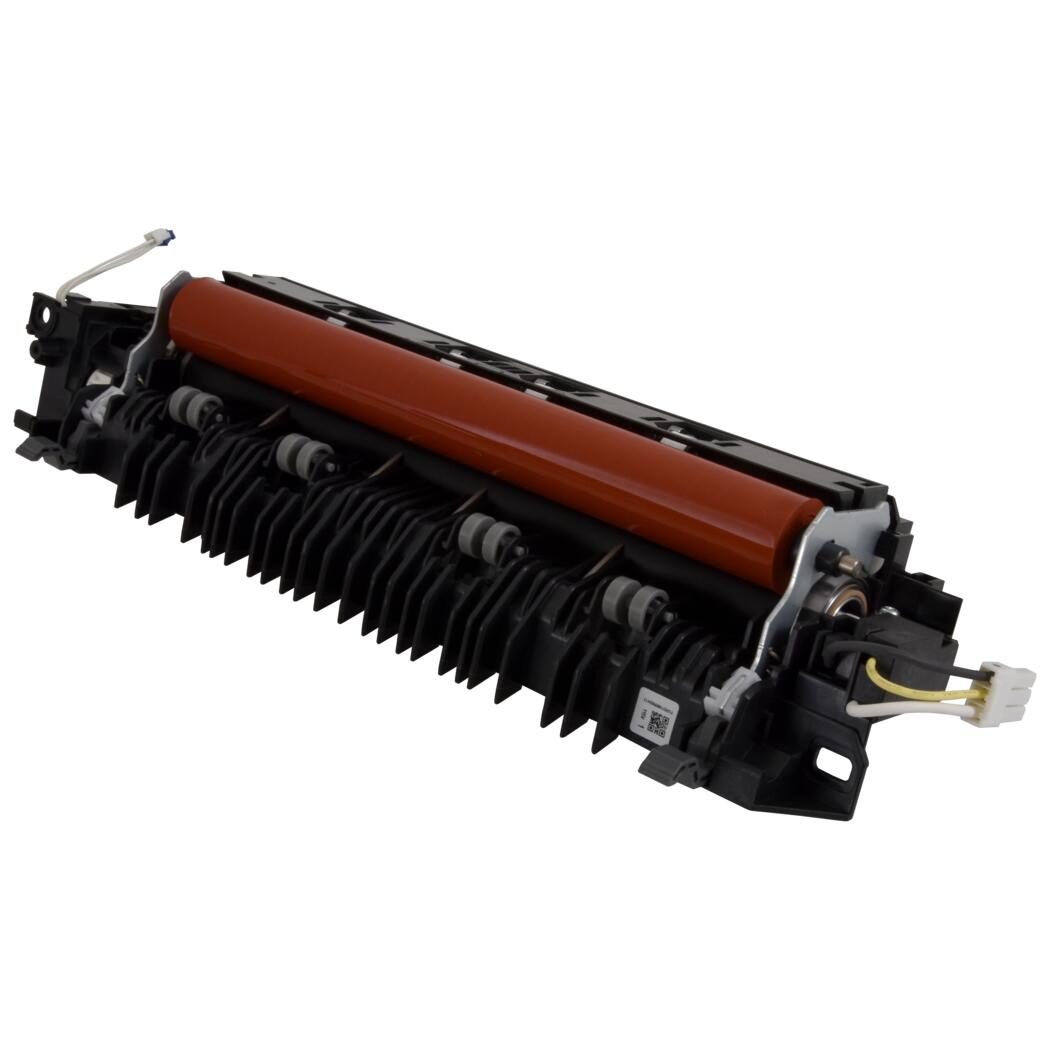 Brother Fuser Unit - 120V