










|
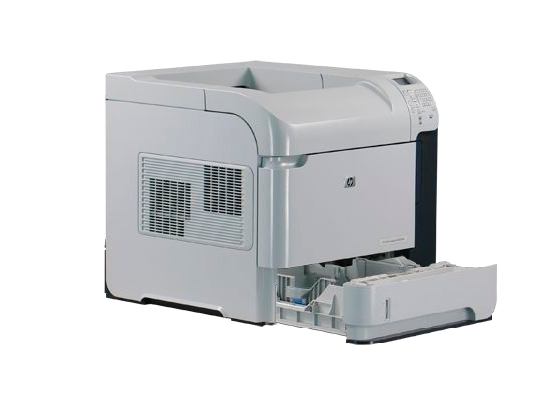
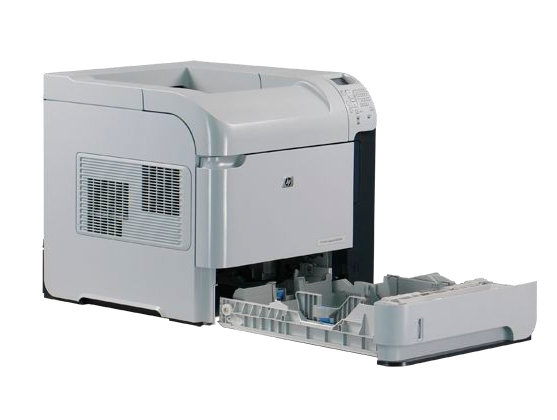
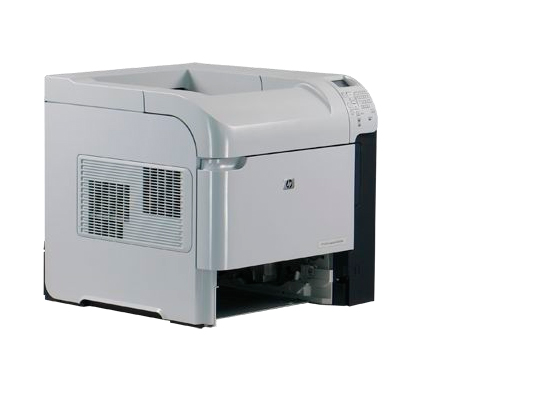
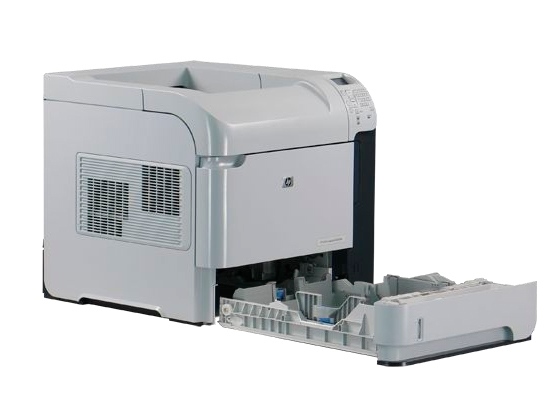
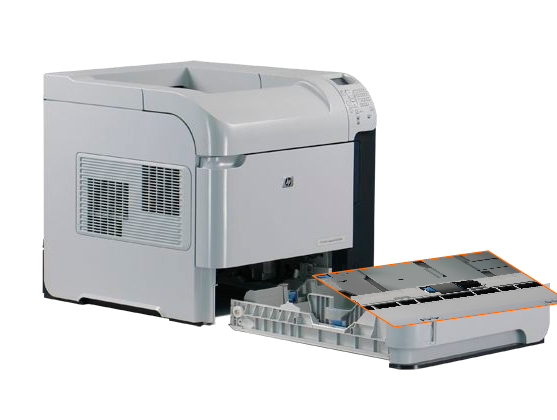
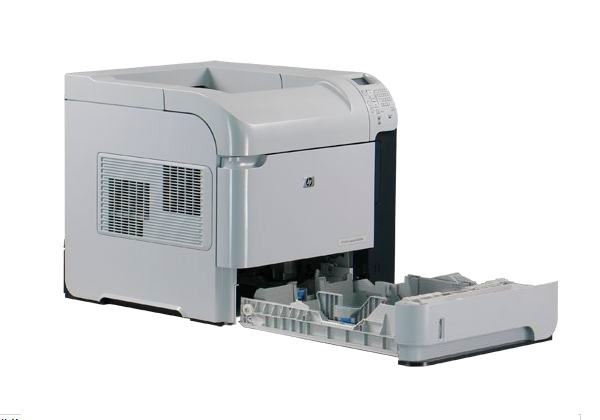
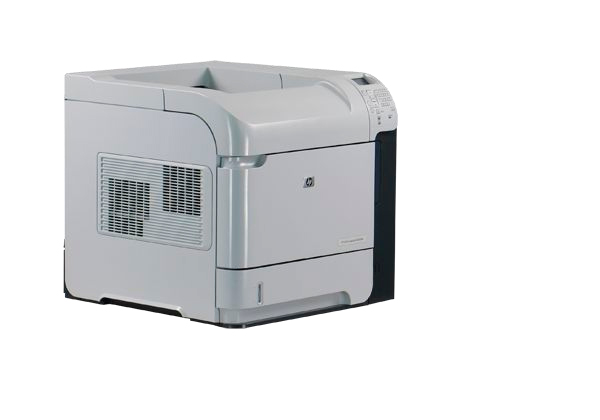
HP LaserJet P4015 Printer Roller Kit Instructions
Originally written for: HP LaserJet P4015dn
Also applies to: HP LaserJet P4014, P4014dn, P4014n, P4015n, P4015tn, P4015x, P4515n, P4515tn, P4515x, P4515xm

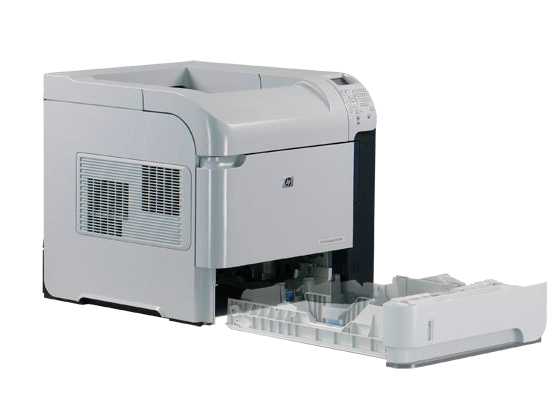
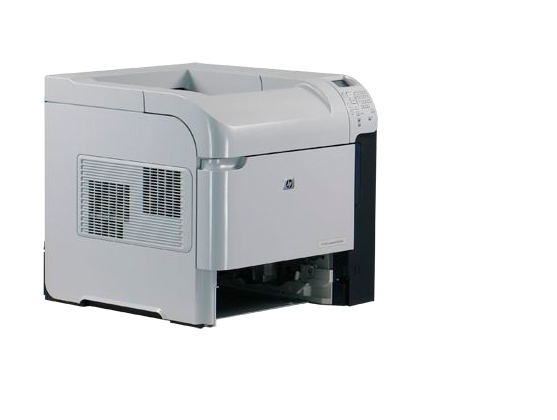
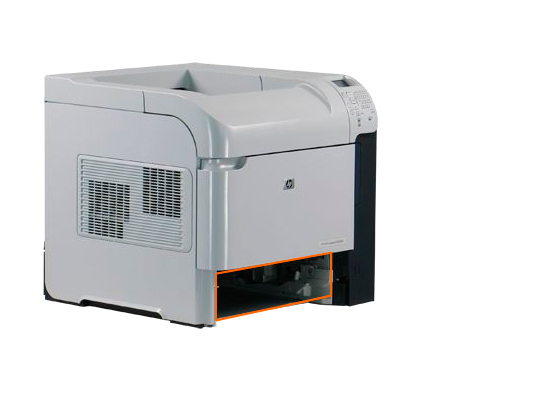
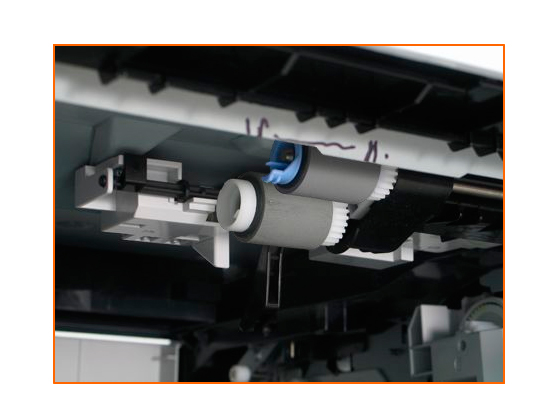
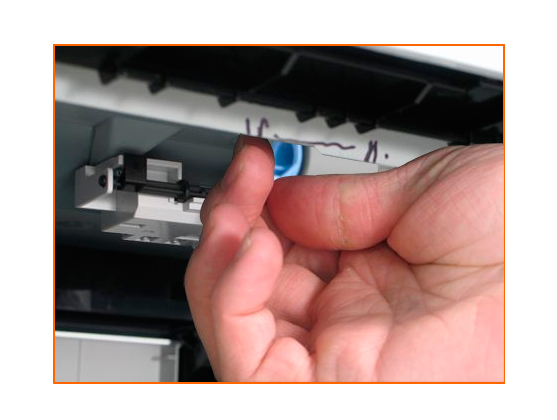
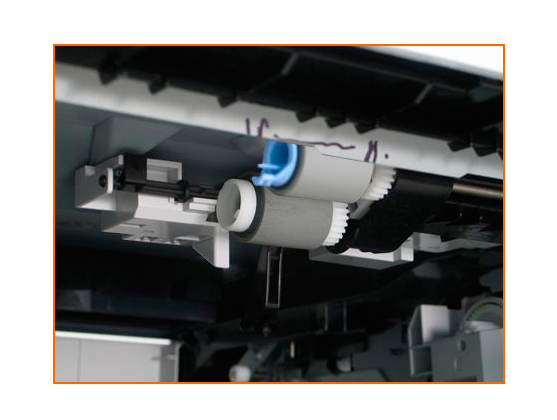
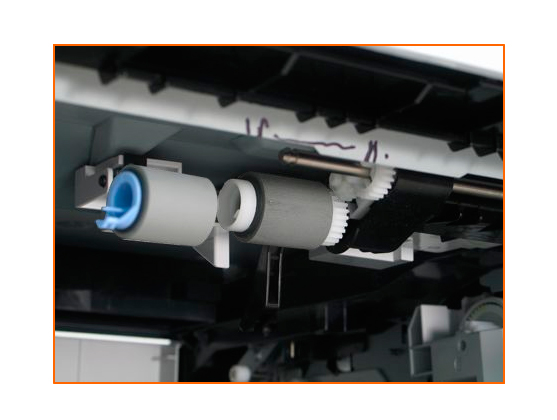
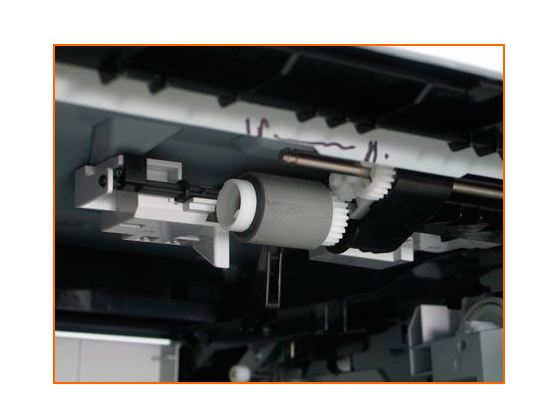
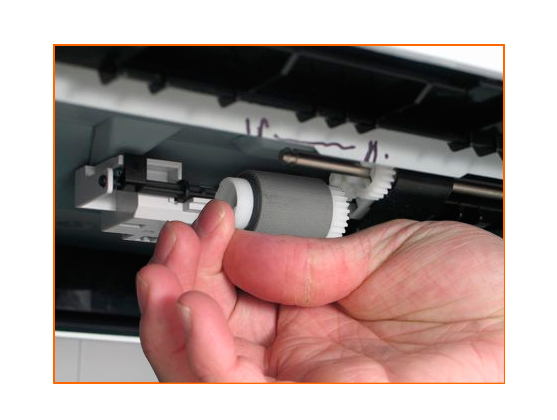
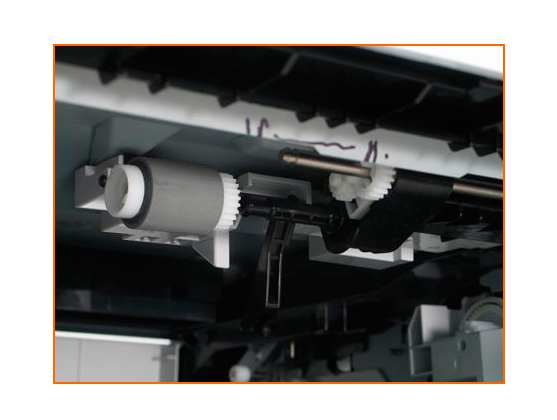
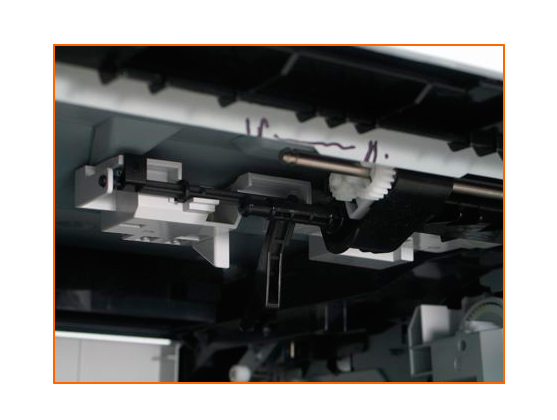
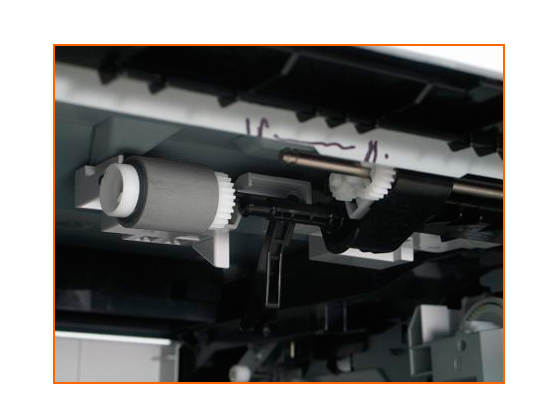
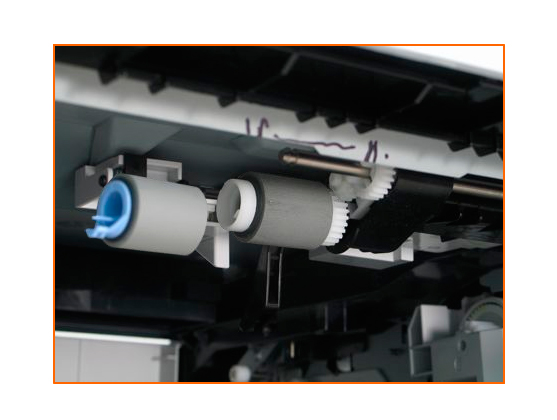
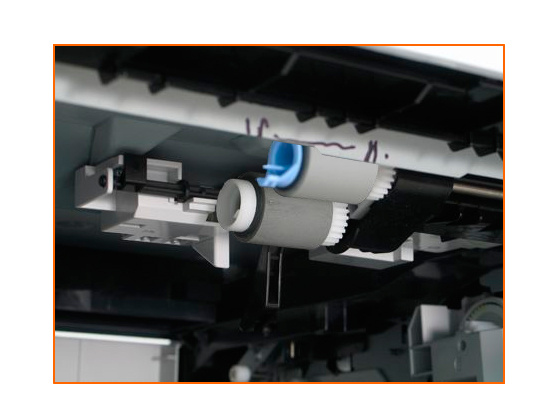
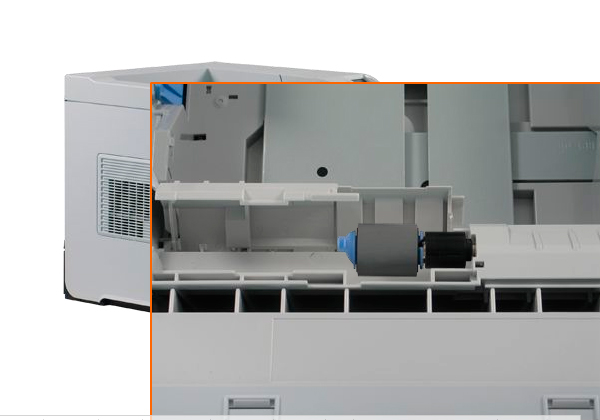
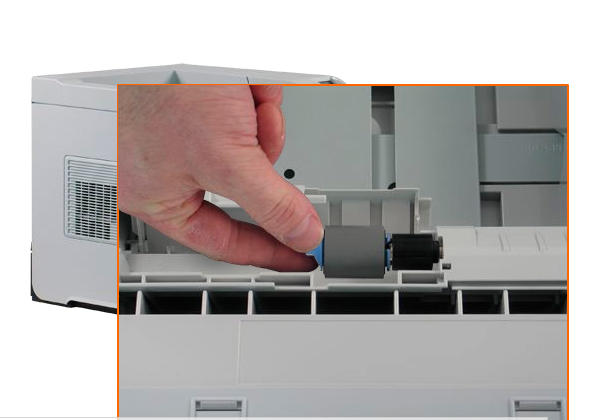
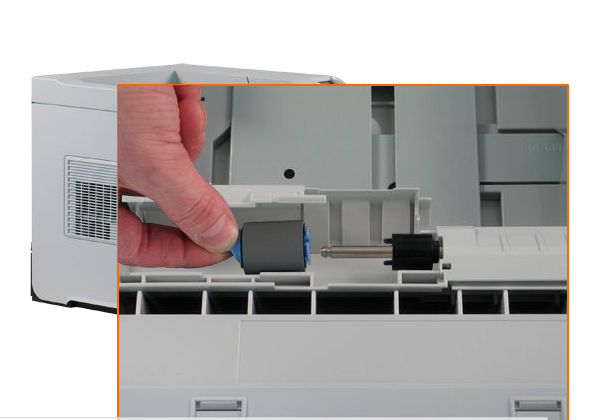
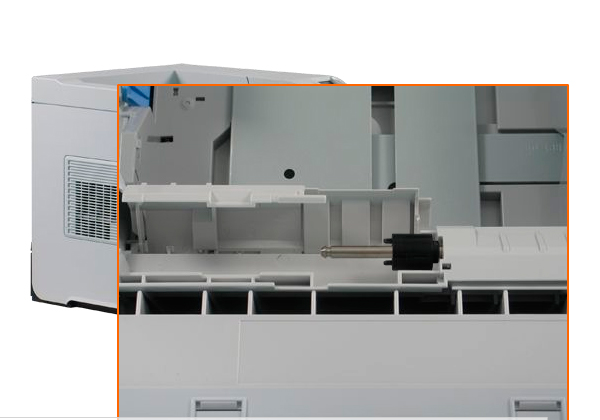
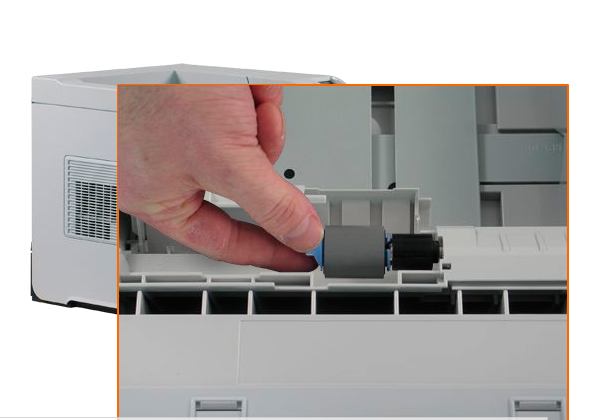
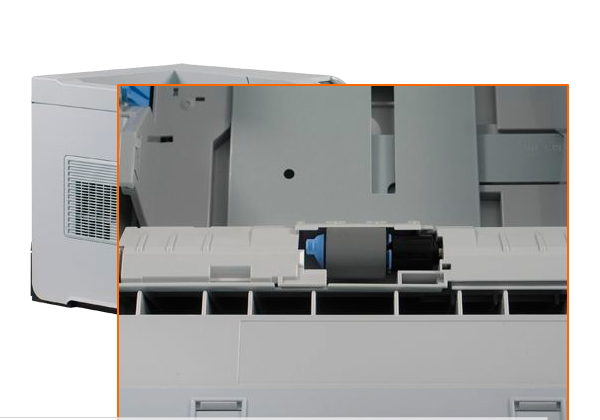
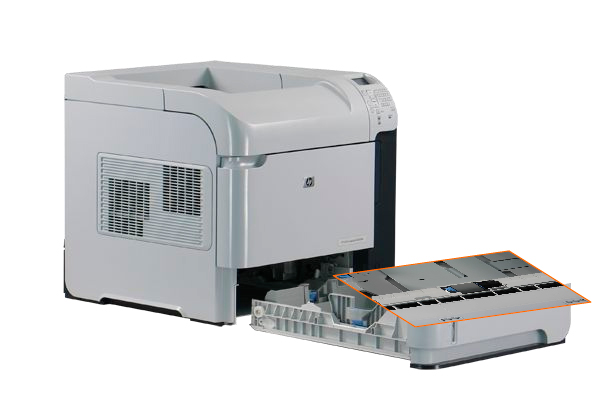
These instructions describe installation of the roller kit on an HP Laserjet P4015 and similar models. To order your replacement paper feed kit for this printer, use the following part: Z4990 (HP CB506-67905 Tray 1 Paper Feed Kit) Note: This article is written to provide instructions on the replacement of all components in the paper feed kit (pickup roller, feed roller, and separation roller). In the event that you may need to replace just one type of roller, the individual rollers are listed below: For the tray 1 feed roller only, use the following part: B8037 (HP RL1-1663-000 Feed Roller Tray 1) For the tray 1 pickup roller only, use the following part: B8038 (HP RL1-1641-000 Pickup Roller, Tray 1) For the tray 1 separation roller only, use the following part: B8036 (HP RL1-1654-000 Separation Roller Tray 1) Note: In the event that your printer contains multiple trays, the following kit is available for trays 2 through 6: Z1750 (HP CB506-67904 Paper Feed Kit) Step 1.
Step 2.
Step 3.
Step 4.
Step 5.
Step 6.
Step 7.
Step 8.
Step 9.
Step 10. Step 11.
Step 12.
Step 13.
|



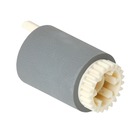 Canon FF5-4634-020 Separation Roller With Hub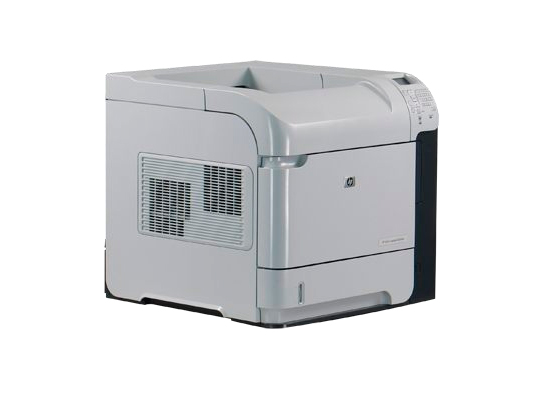

©2003-2024 Precision Roller. • 2102 West Quail Avenue, Suite 1 • Phoenix, AZ 85027 • (800) 323-9523 / (623) 581-3330 • M-F 8:00am - 4:30pm MST (noDST)
Individual brands are copyrighted by their respective owners. Precision Roller is in no way affiliated, sponsored or endorsed by these copyright owners or their affiliates or dealers
This website uses a secure server to encrypt all sensitive information.
Questions? Concerns? Send us a note at webmaster@precisionroller.com
This website uses a secure server to encrypt all sensitive information.
Questions? Concerns? Send us a note at webmaster@precisionroller.com